Manage a WordPress site
Admin login, password reset, site language and admin email, the CDN connection, and the hosting account.
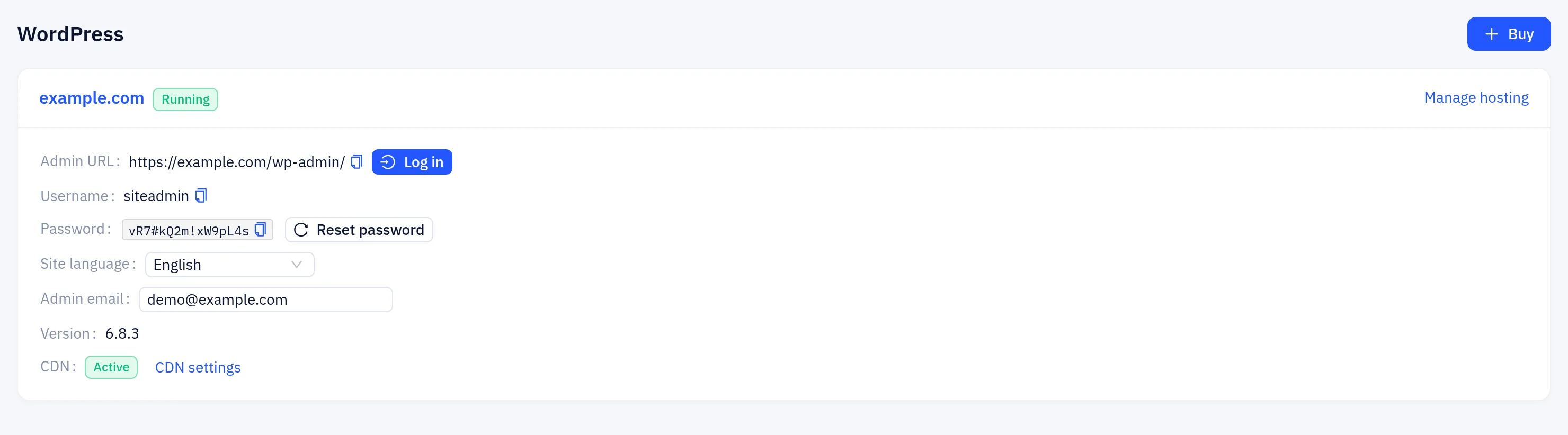
Each WordPress site has a card on Shared hosting → WordPress with its admin details, settings and CDN status. The domain in the card title opens the site.
Admin login and password
- Admin URL: the WordPress dashboard address. Log in opens it already signed in, through a single-use link.
- Username: the administrator account created at install.
- Password: click Show to see it. The password is stored encrypted and only shown to you.
- Reset password: generates a new administrator password. The new one is shown once the change is done on the site, usually within a minute.
If you change the administrator password inside WordPress, the console no longer knows it, and Show shows the old one. Use Reset password to get a new password the console can show.
Site language and admin email
- Site language: the language of WordPress and its admin area.
- Admin email: the address WordPress sends admin notices to, such as password resets and update notices.
Change the value and click Save. The change is applied on the site within a minute or so. If it fails, the card shows Last change failed. Try again.
Version shows the installed WordPress version. Update WordPress, themes and plugins from the WordPress dashboard as usual.
CDN
The CDN line shows the site's CDN connection:
| Status | Meaning |
|---|---|
| Connecting | The site is being added to the CDN |
| Waiting for DNS | Add the CNAME record shown under it at your DNS provider |
| Active | Traffic goes through the CDN |
| Not connected | The site isn't on the CDN |
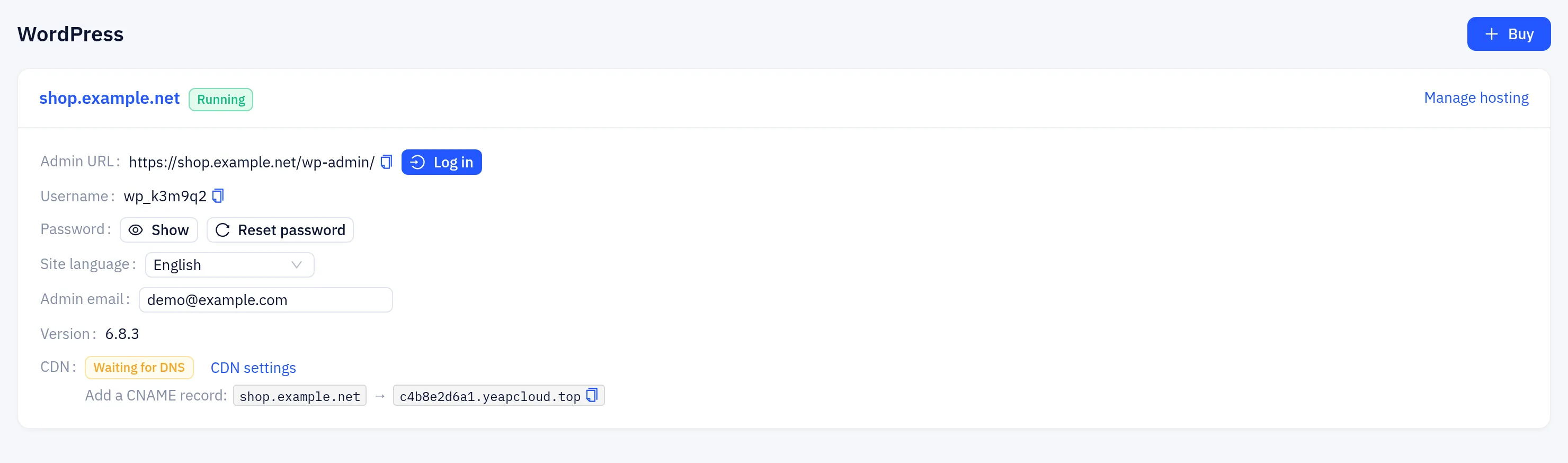
Click CDN settings to open the site in the CDN console. It is a normal CDN site on the free plan, protected by the web firewall with rules for WordPress, so you can change cache, firewall and page rules as described in the CDN docs. Logged-in editors and the block editor work through the firewall without extra rules.
Hosting account
Click Manage hosting at the top right of the card to open the site's shared hosting account: files, databases, domains, SSL and the hosting panel. See Sites, domains and databases.
If you uninstall WordPress from the hosting account, it is not installed again. The card then says that WordPress was uninstalled from this site.
Statuses
| Status | Meaning |
|---|---|
| Activating | The hosting account is being created |
| Installing | WordPress is being installed |
| Running | The site is ready |
| Failed | The installation failed. We have been notified and will fix it |
| Suspended | The hosting account is suspended. Check the plan in Billing, or contact support |
| Uninstalled | WordPress was removed from the hosting account |
Renew, upgrade or cancel the plan from Billing.