Billing and invoices
Balance top-ups, payment methods, invoices, renewals and auto-renew, upgrades and cancellation, coupons and currencies.
How billing works
Yeap Cloud bills through invoices:
- You order from a plan page, the provisioning wizard or the cart.
- An unpaid invoice is created together with the matching subscription.
- When the invoice is paid, the subscription becomes active and the service is provisioned automatically.
- Before the subscription expires, a renewal invoice is created. Paying it extends the subscription by one billing cycle.
Everything to do with money is under Billing in the avatar menu (top right): Balance, Subscriptions, Invoices and Cart.
Account balance and top-ups
Your account balance is held in US dollars (USD). You can top it up in advance and use it to pay invoices.
Top up your balance
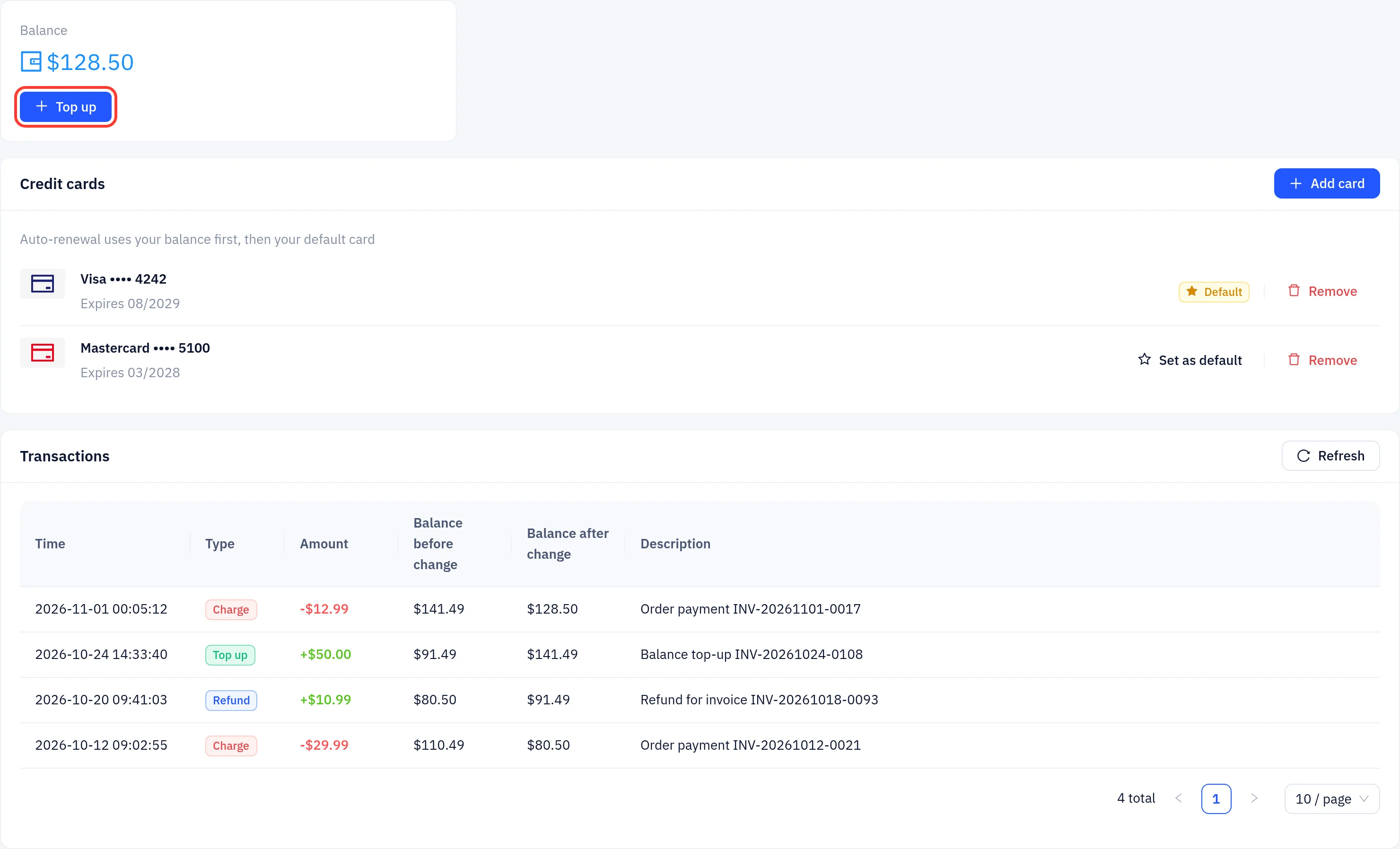
Go to Billing → Balance, or click Top up in the Account overview card on the Overview page.
Click Top up.
Pick a preset amount or enter your own (1 to 10,000 USD, up to two decimal places).
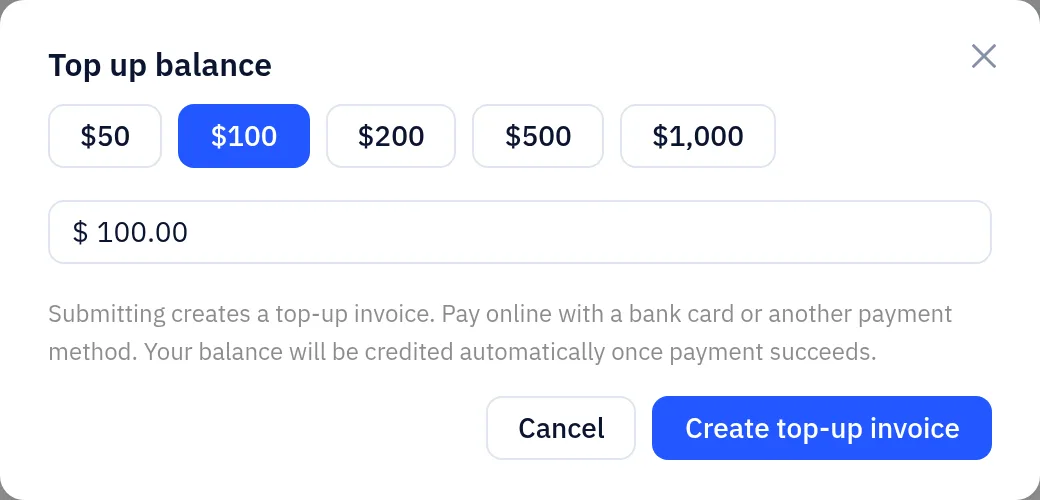
Click Create top-up invoice. A top-up invoice is created and you are taken to it.
Click Pay now and pay by card or another method (see "Payment methods" below).
When the payment succeeds, the amount is credited to your balance automatically. Bank payments are credited once the funds arrive; until then the Balance page shows the top-up as processing.
A top-up invoice cannot be paid from your balance. If you already have several unpaid top-up invoices, pay them or let them expire before creating another. Top-up invoices are due within 3 days.
Transactions
The Transactions table on the Balance page lists every balance movement with its time, type (Top up, Charge, Refund), amount, balance before and after the change, and a description.
Pay an invoice
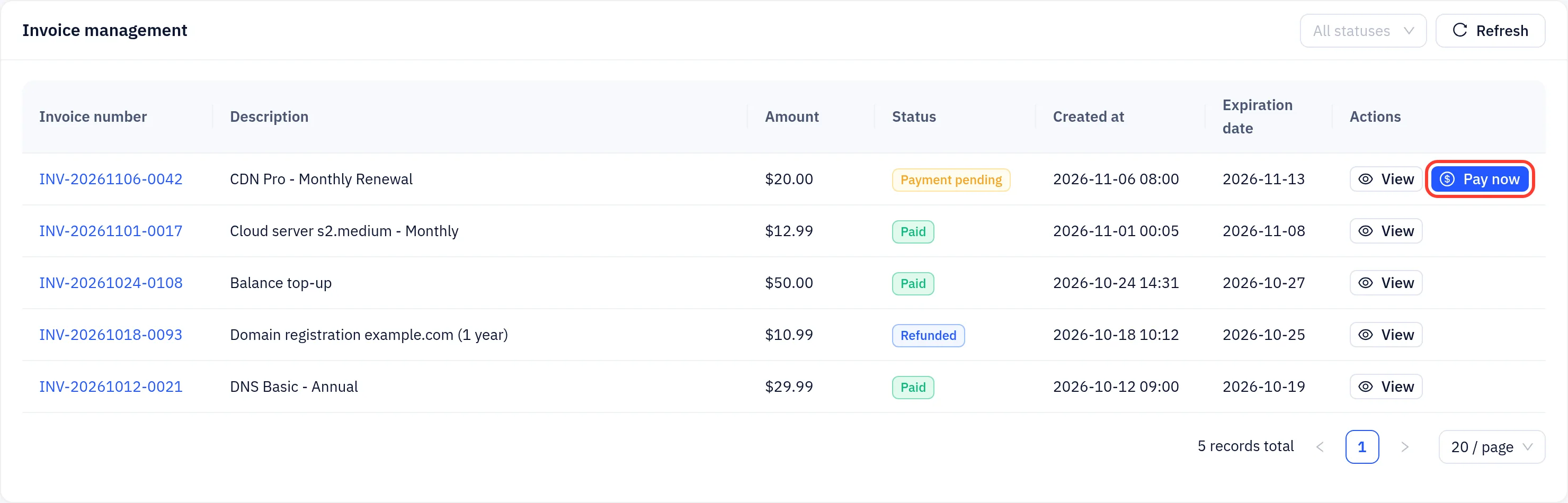
Go to Billing → Invoices, find an invoice with status Payment pending and click Pay now. The invoice page opens.
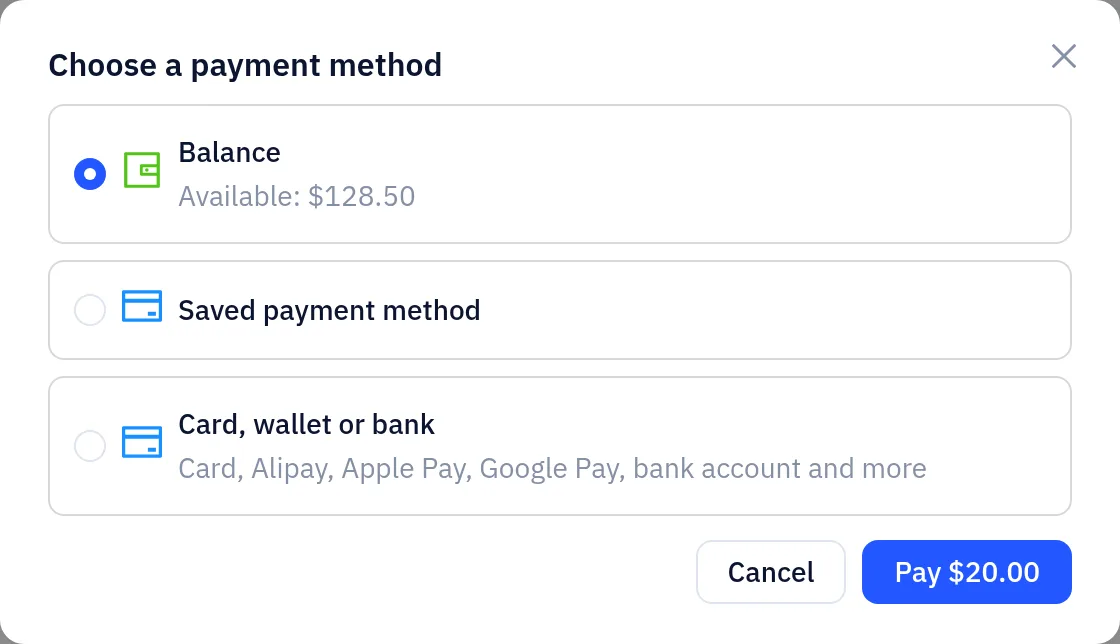
Click Pay now. In the Choose a payment method dialog, pick a method and confirm.
When payment succeeds, the invoice status changes to Paid and the related subscription is activated or extended.
Payment methods
| Method | Details |
|---|---|
| Balance | Charged instantly. If your balance doesn't cover the invoice, the dialog shows Insufficient balance with a Top up link. Not available for top-up invoices. |
| Saved payment method | Pay in one click with a card saved on the Balance page. If your bank requires 3D Secure, a verification window opens. |
| Card, wallet or bank | Enter card details, or use a wallet such as Apple Pay or Google Pay, or a bank account, where available in your country and browser. |
Card and wallet payments are processed by Stripe. Your card number never passes through or is stored on Yeap Cloud servers.
On an unpaid invoice you can also click Cancel invoice if you no longer want the order.
Save a card
- Go to Billing → Balance. Your cards are listed under Credit cards.
- Click Add card, enter the card details and click Save.
- Use Set as default to make a card your default, or Remove cards you no longer use.
Auto-renewal uses your balance first, then your default card (see below). A card you pay with on an invoice for an auto-renewing service is saved automatically.
Invoices
The Invoice management list shows the invoice number, description, amount, status, creation date and expiration date. You can filter it by status. Invoice statuses:
| Status | Meaning |
|---|---|
| Payment pending | Issued and awaiting payment |
| Paid | Paid |
| Canceled | Cancelled, nothing to pay |
| Refunded | Refunded in full |
| Voided | Voided |
Click View to open an invoice. It shows the invoice type, issue date, due date, payment time, payment method and invoice items. Click Print / Export PDF to print it, or choose "Save as PDF" in your browser's print dialog.
Subscriptions and renewals
Billing → Subscriptions lists your subscriptions with product type, plan name, linked resources, status, billing cycle, expiry, an Auto-renewal switch and the Next renewal (date, amount and whether it will be paid from your balance or card). Tabs filter by product; switches at the top show free plans or ended subscriptions, or only those with auto-renewal off. Click Details to see the linked resources, plan specs and usage this period.
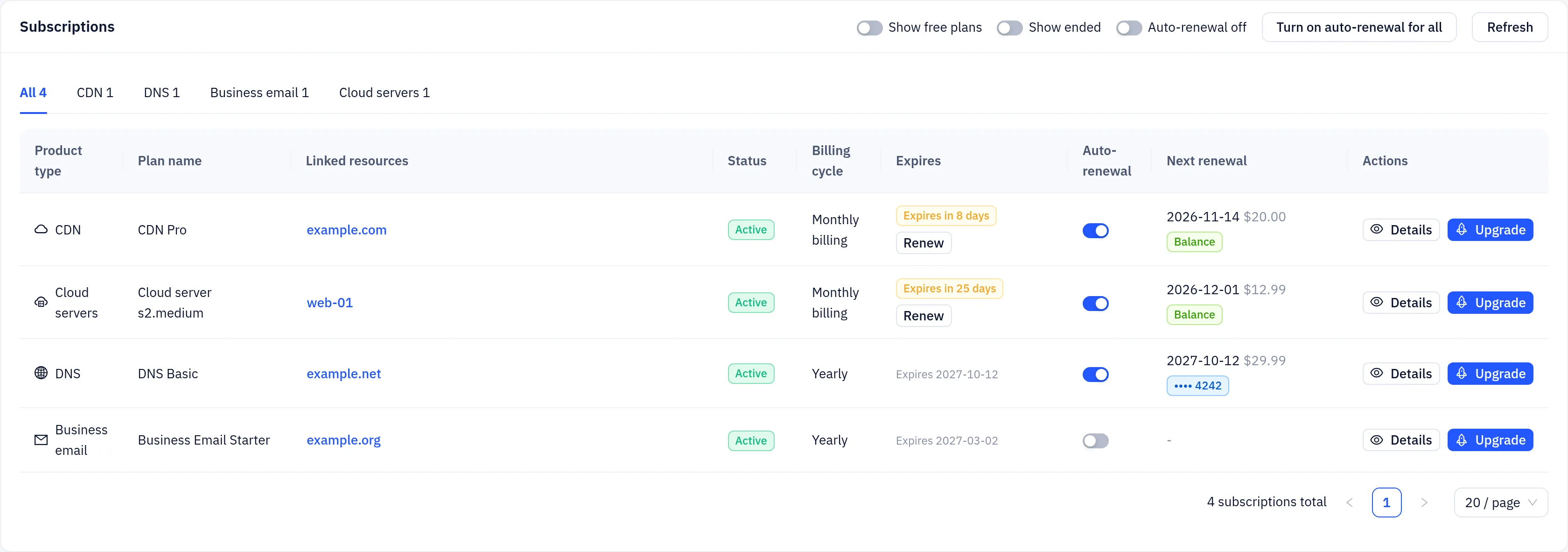
To renew early, click Renew in the Expires column. The renewal is added to your cart; check out and pay it as usual.
Subscription statuses
| Status | Meaning |
|---|---|
| Active | In service |
| Activation pending | Ordered, waiting for payment or provisioning |
| Paused | Expired without renewal; service is paused and resumes once the renewal invoice is paid |
| Canceled | You cancelled the subscription |
| Expired / Terminated | Service has ended |
Auto-renew
- Use the Auto-renewal switch in the list to turn auto-renew on or off for a subscription, or click Turn on auto-renewal for all. New orders have auto-renewal on by default; you can turn it off in the cart.
- With auto-renew on, a renewal invoice is created about 7 days before expiry. On the due date we pay it from your balance, or from your default card if the balance is not enough. If neither works, the invoice stays unpaid; pay it manually before the expiry date.
- With auto-renew off, the service is not renewed and ends at expiry.
Expiry and suspension
- You get reminders 7, 3 and 1 day before a subscription expires.
- After the expiry date the service keeps running for 3 days. If it is still not renewed, it is paused; your data is kept and paying the renewal invoice restores the service.
- About 10 days after expiry, a paused service is deleted and its resources are released. You get a notice before this happens.
A deleted service cannot be restored. Keep an eye on the Needs attention card on the Overview page.
Upgrade a plan
For an active or paused subscription, click Upgrade:
- For DNS, CDN and domain email you are taken to the product's plan page. Choose a higher plan and confirm. The upgrade price takes into account the days remaining in your current cycle.
- For cloud servers, the server's upgrade tab opens.
Other products, such as shared hosting, can't change plans online. Contact support if you need a different plan or a downgrade.
Stop a subscription
To stop a service, turn off Auto-renewal. It keeps running until the expiry date and then ends. Deleting the resource itself (for example a CDN domain or a DNS zone) also ends its subscription. Neither triggers a refund automatically.
Coupon codes
In the Cart, pick one of My coupons or type a Promo code and apply it. The discount is shown on the affected items, and at checkout it is spread across the resulting invoices. If the code is no longer valid at checkout, you are told it did not apply and the invoice is created at the full price. Coupons you have received are listed under Billing → My coupons.
Refunds
Refunds are handled by our support team. A refunded invoice shows the status Refunded. Amounts refunded to your balance appear as Refund entries in your transaction history.
Currencies
- Your balance, plan prices and invoices are in USD.
- Under Profile → Preferred currency you can choose another currency. Prices are then shown in that currency as estimates; the exact amount is shown when you pay. Some payment methods may charge you in your local currency at the rate shown at payment time.