DNSSEC
Turn on DNSSEC, get the DS record, add it at your registrar, and rotate keys or turn it off safely.
DNSSEC adds digital signatures to DNS answers. A recursive resolver that validates DNSSEC can then confirm that an answer really came from the domain's authoritative servers and wasn't tampered with. This protects against attacks such as cache poisoning.
With Yeap Cloud DNS, once DNSSEC is on, the nameservers sign answers on the fly, so you don't have to manage signing yourself. For DNSSEC to actually take effect, you also have to submit the platform's DS record at your domain registrar. That builds the chain of trust from the parent zone (such as .com).
DNSSEC is included with DNS Pro, DNS Multi-zone and DNS Enterprise. It isn't available on DNS Free or DNS Basic. See plans.
Before you start
- The zone must be Active, and the domain's nameservers must already point to the nameservers assigned by the platform (see Zones and records).
- Make sure your registrar lets you add DS records for the domain, with algorithm 13 (ECDSA P-256 / SHA-256) and digest type 2 (SHA-256). Major registrars and common TLDs support both.
- If DNSSEC was turned on for this domain at a previous DNS provider, delete the old DS record at your registrar first. Wait for it to expire from caches before you switch nameservers. Otherwise the domain may stop resolving after the switch.
Step 1: Turn on DNSSEC for the zone
- Go to DNS → Zones and click ⋮ → DNSSEC on the zone's row. Or, on the zone's records page, click More actions → DNSSEC settings.
- In the DNSSEC settings window, click Enable DNSSEC and confirm.
- The system generates the signing keys (a KSK and a ZSK). The window's DNSSEC status changes to Enabled. It also shows the Signature algorithm,
ECDSAP256SHA256, and the key tags of the KSK and ZSK.
From then on, the nameservers publish DNSKEY records for the zone. Queries that ask for DNSSEC get signed answers (RRSIG records), and names that don't exist get signed negative answers.
Step 2: Get the DS record
Once DNSSEC is on, the DNSSEC settings window lists each field of the DS record. Each field has its own copy button:
| Field | Description |
|---|---|
| Key Tag | The key tag, a whole number from 0 to 65535 |
| Algorithm | 13 (ECDSAP256SHA256) |
| Digest type | 2 (SHA-256) |
| Digest | A hexadecimal string |
Below them, Full DS record format shows the whole record, like this:
example.com. IN DS 12345 13 2 3F8A...(digest)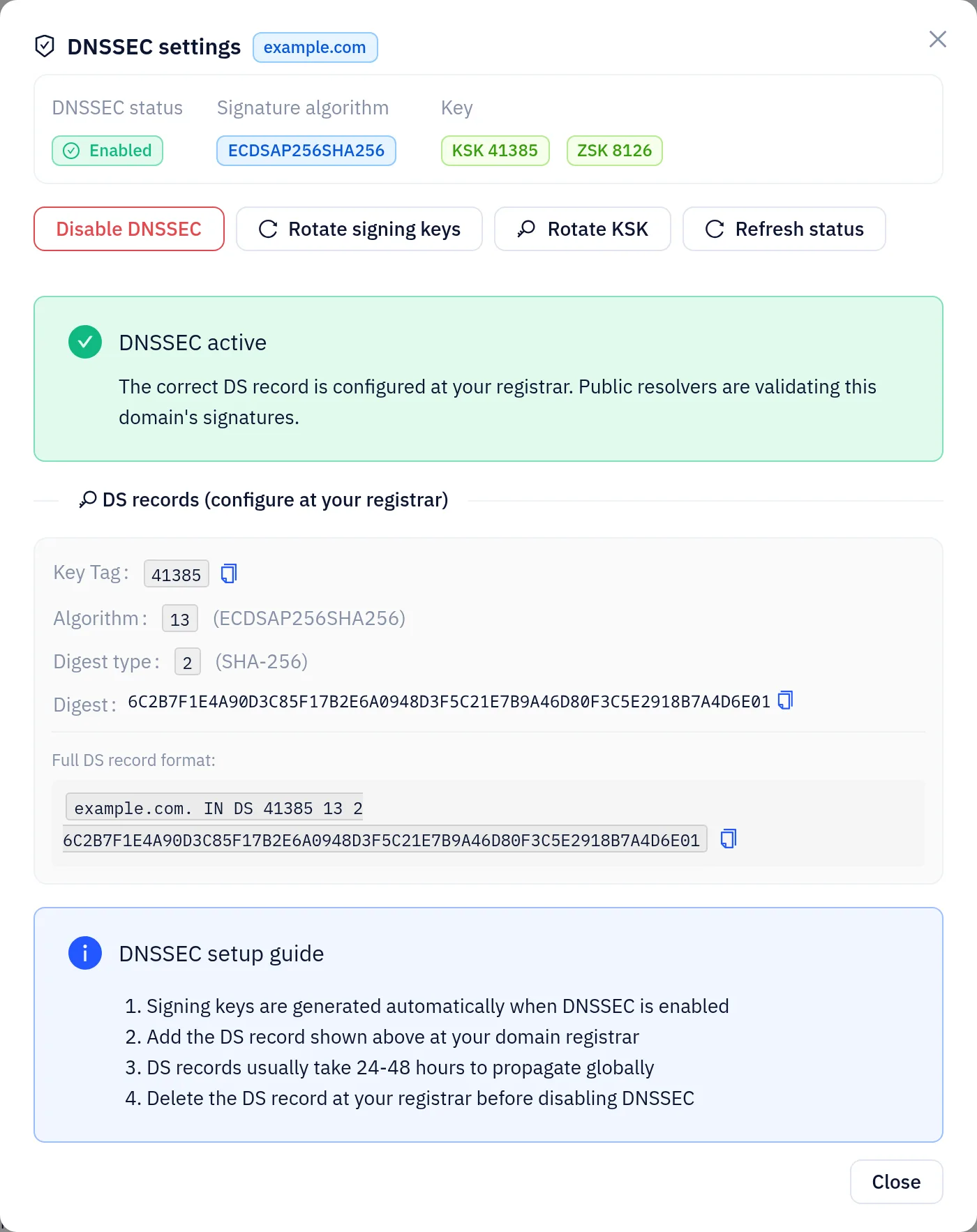
Some registrars ask for Key Tag, algorithm, digest type and digest as separate fields. Others accept the whole DS line. Use whichever form your registrar asks for.
Step 3: Add the DS record at your registrar
If the domain is with another registrar: sign in to the registrar, find the domain's DNSSEC or DS record settings, fill in the values from the table above, and save.
If the domain is registered with Yeap Cloud: open Domains → My domains, click the domain, and go to the DNS servers tab. The DNSSEC card there shows the DS records the registry currently has:
- Click Sync DS from Yeap DNS to submit the zone's DS record to the registry.
- Or fill in Key Tag, Algorithm, Digest type and Digest under Manually add DS and click Submit.
- When the DS record appears in the card, the submission worked.
The DNSSEC card appears only if the domain's extension supports DNSSEC.
After you submit a DS record, it usually takes a few hours, and up to 24–48 hours, to take effect worldwide. The time depends on how often the registry publishes and on cache times.
Step 4: Verify
Once the DS record is live, the DNSSEC settings window shows DNSSEC active. The platform checks the parent zone through public resolvers: until the DS record is found it shows that the DS record is not yet configured at the registrar, and if the DS doesn't match the current key it shows DS record mismatch. Click Refresh status to check again.
You can also check the chain of trust yourself:
# Check that the parent zone publishes the DS record
dig +short DS example.com

# Look at the zone's DNSKEY and signatures (use a nameserver assigned to the zone)
dig +dnssec DNSKEY example.com @<assigned-nameserver>

# Query a validating public resolver; the "ad" flag means validation passed
dig +dnssec www.example.com @1.1.1.1
Online tools such as DNSViz can also draw the whole chain of trust for you.
Rotating keys
The DNSSEC settings window has two rotation buttons. Both roll over gradually, so the domain keeps resolving:
Rotate signing keys replaces the ZSK. The old and new ZSKs run in parallel for about an hour before the switch happens automatically. The DS record stays the same, so you don't need to do anything at your registrar.
Rotate KSK replaces the KSK, which changes the DS record:
- The window shows the new DS record. Add it at your registrar and keep the old DS record.
- Click Added. Once the platform sees the new DS in the parent zone, it switches to the new key.
- When the rotation is complete, delete the old DS record at your registrar (the window shows its Key Tag).
For domains registered with Yeap Cloud, click Automatically update DS in step 1 instead: the platform submits the new DS, continues on its own once it is live, and deletes the old DS when the rotation is complete.
You can stop a KSK rotation before the switch: click Cancel next to it and confirm. If you already added the new DS record, you can remove it again at your registrar.
Turning DNSSEC off safely
If you turn off DNSSEC in the console while your registrar still has the DS record, validating resolvers treat the answers as tampered with and the domain stops resolving. Do it in this order:
- Delete the domain's DS record at your registrar. For domains registered with Yeap Cloud, click Delete DS record in the DNSSEC card on the domain's DNS servers tab.
- Wait for the DS record to expire from caches. Waiting at least 24–48 hours is recommended. Run
dig +short DS example.comto confirm the parent zone no longer returns a DS record. - Go back to the DNSSEC settings window, click Disable DNSSEC and confirm.
Use the same order when moving a domain off the platform: delete the DS record, wait for caches to expire, then change the nameservers or delete the zone.
If your new DNS provider also supports DNSSEC, finish the move first and confirm the new provider is answering correctly. Then turn DNSSEC back on using the DS record your new provider gives you.