Reinstall and upgrade
Reinstall the operating system, change the spec, expand disks and add IPs.
Reinstall the OS
Reinstalling rebuilds the system disk from an image. Data disks are not touched.
- Open the instance, then More actions → Reinstall OS (or Settings → Reinstall OS).
- Choose the Image.
- Password: a random one is filled in; type your own or click Random. Clear the field to keep the current password.
- Linux: tick Replace SSH keys to bind different keys, or leave it to Keep current keys.
- Click Reinstall and confirm.
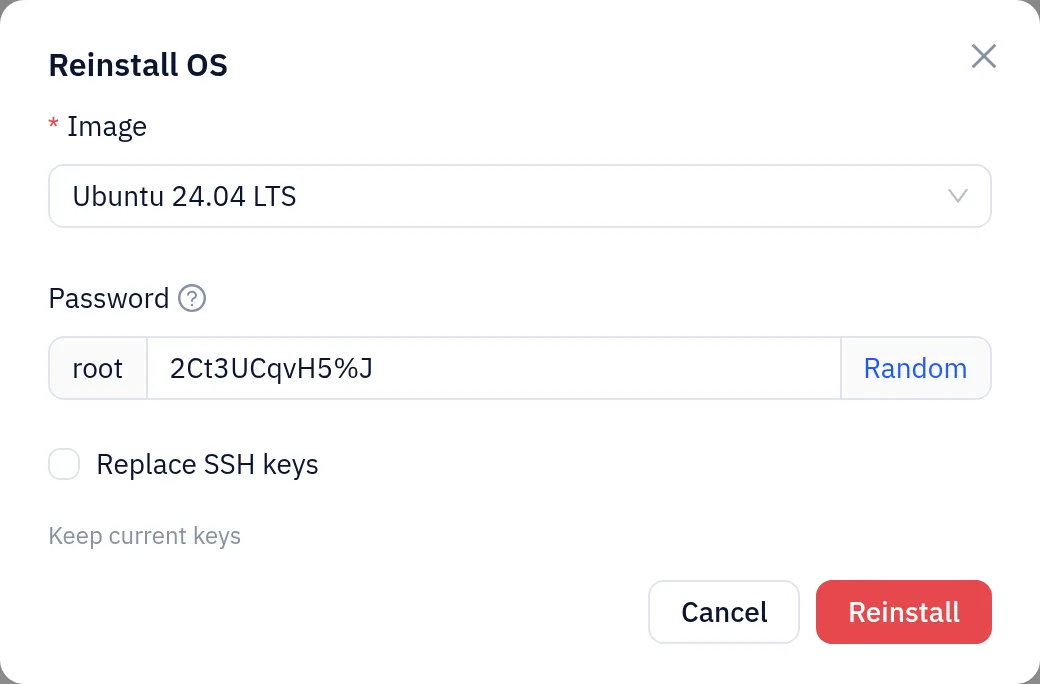
Everything on the system disk is erased. Back it up first.
After the reinstall:
- Remove the old host key on your computer:
ssh-keygen -R <instance-ip>. - Mount data disks again and redo settings made inside the OS (extra IPs, firewall).
Upgrade
The Upgrade tab lists the resources you can change on this instance (only what its region offers). Prices are shown before you pay.
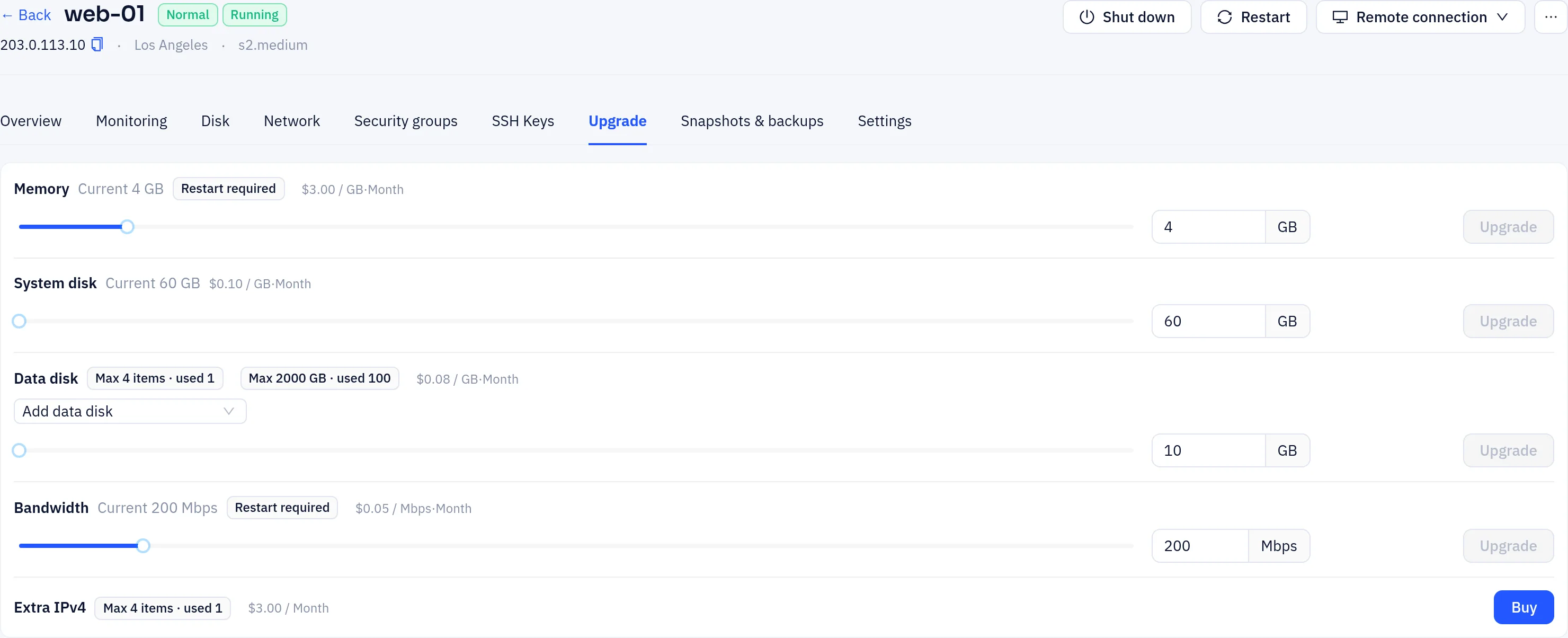
- Memory, System disk, Bandwidth and other resources: set the new value with the slider or number, check the price for the rest of the period, and click Upgrade. Lowering a value shows Downgrade instead: it is free, not refunded, and the new configuration is billed from the next billing period.
- Data disk: choose Add data disk or Expand capacity of an existing disk. Disks can't be shrunk after expansion; the partition inside the OS is extended on restart.
- Extra IPv4: click Buy to add an address.
Rows tagged Restart required take effect after a restart; the page then shows a Restart prompt.
Release an instance
To delete an instance for good, open its Overview tab and click Release next to the expiry date. Type the instance name to confirm.
the instance and its data are deleted right away and cannot be recovered. For hourly instances, unused whole hours go back to your balance; for monthly or longer terms, the remaining prepaid time is not refunded.
Troubleshooting
- The action is disabled: another task is running, or the instance is not in a state that allows it. Wait and try again.
- Can't log in after a reinstall: open Remote connection → VNC to check that the first boot has finished.