WAF and security
Configure WAF managed rule sets, custom firewall rules, rate limiting, under-attack mode, and access controls such as hotlink protection and country/User-Agent lists.
Each CDN domain has a Firewall page where you manage the security policy that the edge applies to that domain. Go to CDN → CDN domains, open a domain, then select Firewall.
The Firewall page has four tabs:
| Tab | Purpose |
|---|---|
| Rule settings | Custom firewall rules, WAF managed rule sets, and custom WAF scoring rules |
| Access control | Hotlink protection, country/ASN blocking, User-Agent lists, access authentication, under-attack mode (UAM), and connection protection |
| WAF analytics | Statistics on blocks and other events (see Logs and analytics) |
| Event logs | One entry for each blocked or challenged request |
When you save, the configuration is sent to the edge automatically. Changes usually take effect within seconds to a minute, and you don't need to purge the cache.
WAF managed rule sets
The WAF (web application firewall) checks the URI, query string, User-Agent, Referer and cookies of each request. It also checks form and JSON request bodies. It looks for common attack payloads.
Open Firewall → Rule settings and find the WAF preset rulesets card.
Turn on the switch in the card header.
Under Protection level, drag the slider. Standard suits most sites. Higher levels run more rules and block more legitimate requests by mistake.
Next to the slider, choose what happens on a match: Block blocks the request with
403and logs the event; Log only logs the event but doesn't block. Use Log only to check for false positives before you enforce new rules.Expand a group and turn individual categories on or off:
Group Categories Injection protection SQL injection, cross-site scripting (XSS), remote command execution, PHP injection, Java attacks, generic attacks, session fixation File security File inclusion (LFI/RFI) Protocol security Protocol compliance, protocol attacks Scanners & bots Scanner detection, bad bots Response inspection Webshells and backdoors, data leakage Click Save.
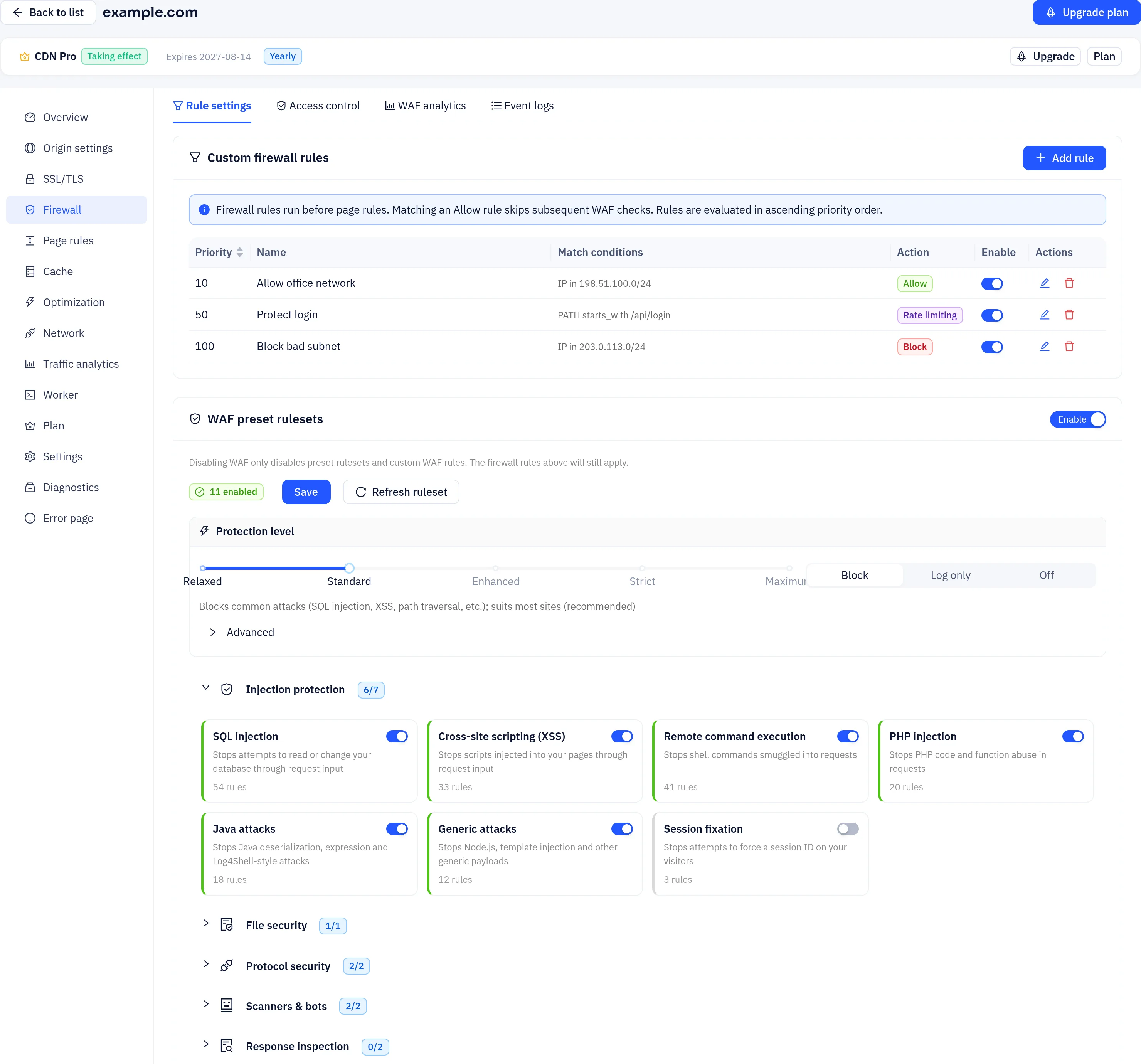
Under Advanced you can set the Paranoia level (PL1 to PL4) and the Anomaly score threshold directly. Each matching rule adds points to the request's score, and the request is blocked when its score reaches the threshold. The default is 5. Lower values are stricter.
Every CDN plan includes the WAF. At the time of writing, Free and Starter sites get a basic rule set against high-risk attacks (SQL injection, XSS, path traversal, command injection, file inclusion) without the category switches; Pro and above get the full managed rule set shown here. Check the Plans page for current details.
When you first enable the WAF, run it in Log only mode for a while. Check the Event logs tab for legitimate requests that would have been blocked, then switch to Block.
Custom WAF scoring rules
If the managed rule sets don't cover your case, add rules in the Custom WAF rules (scoring) card:
- Where to inspect: URI (with query string), path, query parameters, request body, a request header, a cookie, User-Agent, or method. For headers and cookies, you can give a name.
- Match type: regular expression, SQL injection (libinjection) or XSS (libinjection).
- Action:
- Block: blocks immediately. You can set the status code; the default is
403. - Log (score): adds the rule's score to the request. The request is blocked once its total score reaches the anomaly score threshold.
- Block: blocks immediately. You can set the status code; the default is
Custom firewall rules
A custom firewall rule pairs conditions with an action. Typical uses are blocking IP addresses, allowing traffic only from certain countries, and protecting login endpoints.
Create a rule
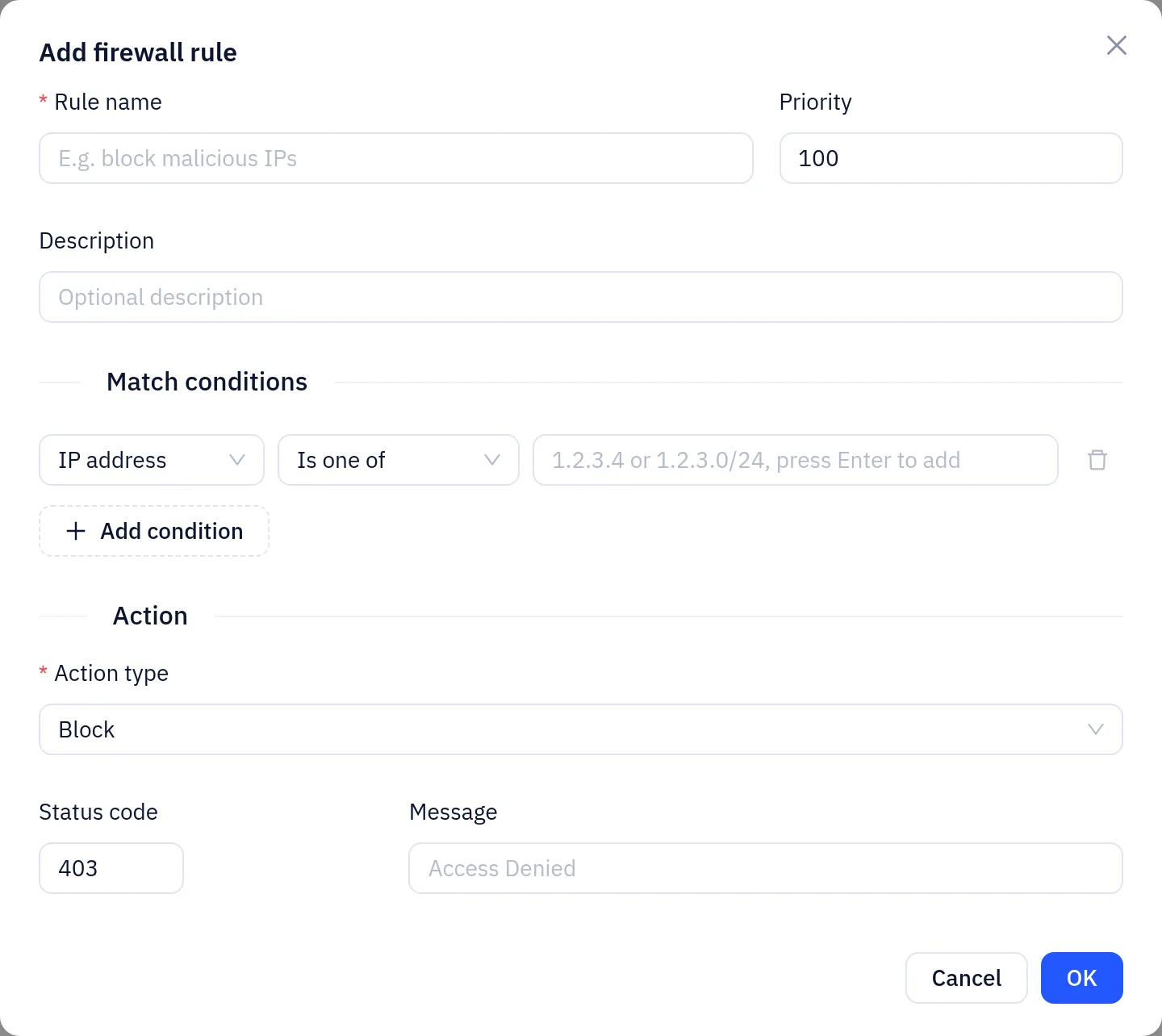
- In the Custom firewall rules card, click Add rule.
- Enter a Rule name. The Priority can be from 1 to 9999; the default is 100.
- Add one or more conditions. Each condition has a field, an optional key, an operator and a value. A request matches the rule only if it meets all of the conditions.
- Choose an Action type and fill in its settings.
- Save. You can enable, disable or delete a rule from the list at any time.
Fields
| Field | Description |
|---|---|
| IP address | The client IP. With "in list", each value can be a single IP or a CIDR range |
| Country code | ISO 3166-1 alpha-2 code, such as US or DE |
| ASN | Autonomous system number, such as 13335 |
| URI path / Path | The request path, without the query string |
| Host | The requested hostname |
| Method | GET, POST, and so on |
| User-Agent / Referer | The matching request header |
| Header / Cookie / Query parameter | Put the name in the key field |
| Extension | The file extension, such as jpg |
The available operators are equals, not equals, contains, does not contain, starts with, ends with, in list, not in list, regex match, greater/less than (or equal), exists and does not exist. For list operators, put each value on its own line.
Country and ASN come from the client IP address. If an IP can't be mapped, conditions on those fields don't match.
Actions
| Action | Effect |
|---|---|
| Block | Returns an error response. You can set a status code from 400 to 599; the default is 403 |
| Allow | Skips the WAF and any remaining rules. Use it for trusted IPs or callback endpoints |
| JS challenge / Managed challenge | Shows the visitor a browser verification page, using the same mechanism as under-attack mode. A visitor who passes isn't challenged again until their clearance expires |
| Rate limiting | Counts matching requests and acts when the limit is exceeded (see below) |
More than one rule can match a single request. Don't enable overlapping rules with conflicting actions, such as allowing and blocking the same range. The result may not be what you expect.
API example
Block a subnet:
curl -X POST "https://api.yeap.cloud/api/user/cdn/firewall-rules/create" \
  -H "Authorization: Bearer <token>" \
  -H "Content-Type: application/json" \
  -d '{
    "domain_id": 123,
    "name": "Block bad subnet",
    "expression": {"op": "and", "conditions": [
      {"collection": "IP", "op": "in", "var": ["203.0.113.0/24"]}
    ]},
    "action": "block",
    "action_config": {"status": 403},
    "priority": 100,
    "enabled": true
  }'
Other endpoints:
- List rules:
GET /api/user/cdn/firewall-rules?domain_id=123 - Update a rule:
POST /api/user/cdn/firewall-rules/update, withidin the body - Delete a rule:
DELETE /api/user/cdn/firewall-rules/delete?id=<id>
Rate limiting
To rate-limit traffic, create a firewall rule with the Rate limiting action. Use its conditions to select the requests to protect, such as paths that start with /api/login. Then set:
- Max requests and Per (window in seconds): the request is over the limit when the count within the window goes above the limit. With Metering method set to bandwidth, the limit counts response bytes per second instead, which protects against high-volume downloads.
- Rate limit dimension: IP address, request header, cookie, URI path or country. For headers and cookies, also enter the name, such as
X-Api-Key. - Scope: Per key keeps a separate counter for each key value, such as one counter for each IP. Per key + path also splits the count by URI path. Total uses one counter for all requests that match the rule.
- Over-limit action: block with
429, human challenge, log only, or tarpit. Tarpit slows the response down but doesn't reject it.
Each edge location keeps its own counters. If a client's requests are spread across several locations, the total allowed across the network can be higher than the per-location limit.
Access control
The Access control tab contains several dedicated modules. Each module has its own switch. When you're done, click Save access control to save them all.
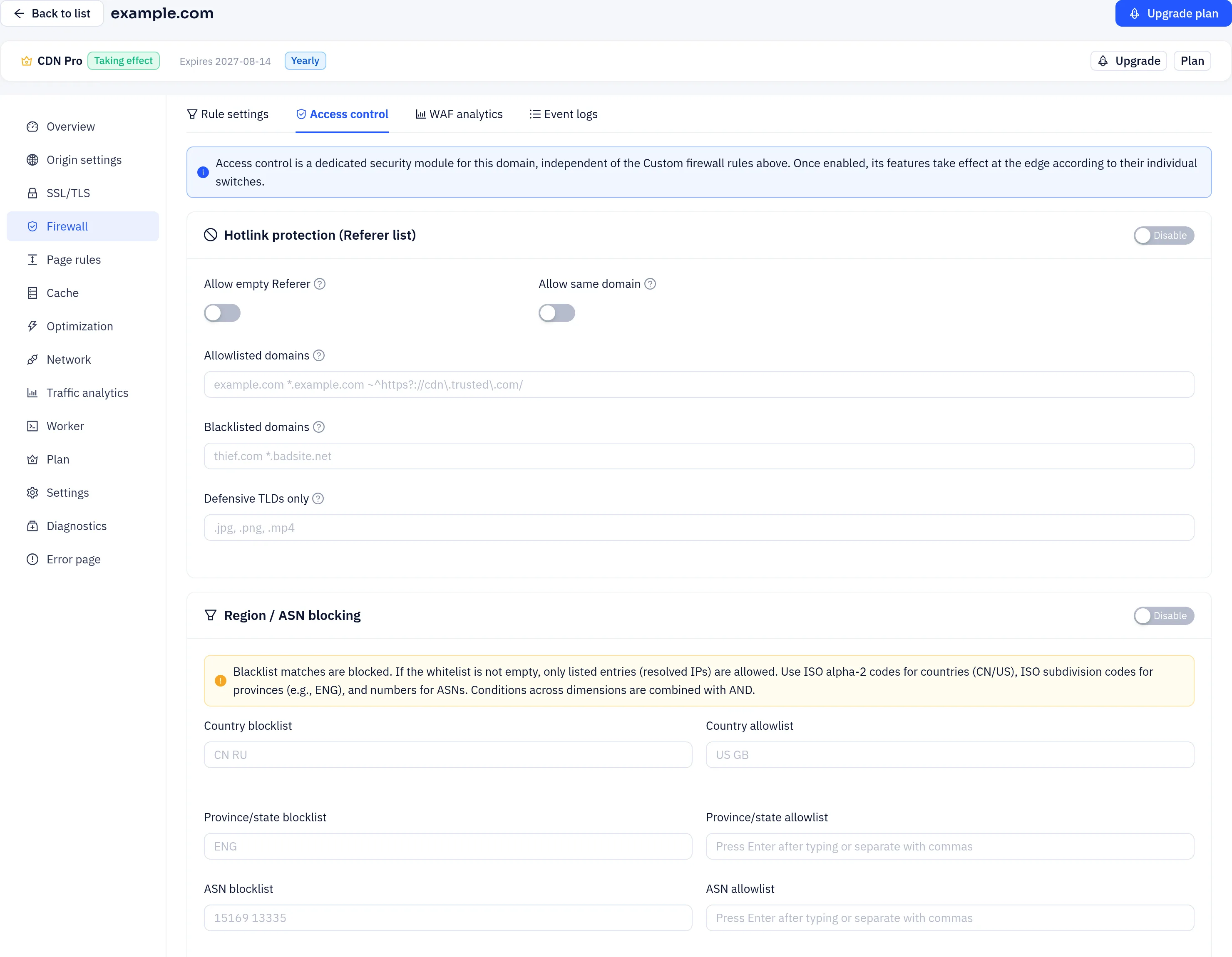
Hotlink protection (Referer list)
- Allow empty Referer and Allow same domain: let through direct visits and links from your own site.
- Allowed domains: one entry per line. You can use exact names, wildcards such as
*.example.com, or regular expressions that start with~. If this list isn't empty, the Referer must match one of its entries. - Blocked domains: a matching request is blocked. This list takes precedence over the allowed list.
- Protected extensions: limits protection to certain file types, such as
.jpgor.mp4. Leave it empty to protect all paths.
Country / ASN blocking
Set block and allow lists, one entry per line, for countries, subdivisions (ISO 3166-2 codes) and ASNs. A match on a block list is blocked. If the allow list for a dimension isn't empty, only visitors on that list are let through. When you use more than one dimension, a visitor must pass all of them.
User-Agent list
Set the default action, how to handle an empty User-Agent, and the block status code, then add rules. Choosing allow as the default works as a blocklist; choosing block works as an allowlist. Rules are checked from top to bottom, and the first match decides the outcome. You can match by substring, wildcard, regex, exact value, prefix or suffix.
Access authentication
You can set IP allow and deny lists, which accept CIDR ranges. You can also require HTTP Basic authentication, a token parameter, or a signed URL (types A, B, C or D). If you configure more than one method, choose whether a request must pass all of them or any one of them.
Under-attack mode (UAM)
| Mode | Behaviour |
|---|---|
| Off | No proactive challenges |
| Adaptive | No challenges normally. Visitors are challenged only when the platform's automatic protection detects abnormal traffic |
| Under attack (5-second shield) | Every visitor must pass a browser verification (proof of work) first |
| Force CAPTCHA | Every visitor must solve a CAPTCHA. captcha.la is supported, and you must enter its Site Key and Secret. Without them, visitors get the browser verification instead |
You can tune minimum wait (seconds) (5 or more recommended), difficulty (15 or more recommended) and clearance lifetime (seconds). Enter 0 to use the default. Allowlisted IPs/CIDRs skip the challenge in every mode. Static file extensions and allowed bot ASNs apply only in Adaptive mode; Under attack and Force CAPTCHA ignore them.
During a flood attack, switch to Under attack. Switch back to Off or Adaptive when the attack ends, so API clients and search engine crawlers aren't affected.
Connection protection (Slowloris)
Limits the number of concurrent connections from each IP and detects slow-request attacks. You can set the minimum body transfer rate, sampling window, grace period, maximum idle time and maximum time to receive the body. Enter 0 for no limit.