Organizations
Shared drives for a team: shared-pool and per-seat plans, adding members, storage caps and roles.
An organization is a shared drive for a team. You own it and pay for it; the members you add get their own login and their own folders inside the organization's storage.
Create an organization
- Go to Storage → Cloud Drive and click Create organization.
- Choose Organization, then pick a plan:
- Shared pool: a fixed amount of storage that all members share, with a maximum number of members.
- Per seat: each member gets a seat of a fixed size, 5 GB or 10 GB. Buy as many seats as you need.
- Enter the organization name, then add the order to the cart and pay. The organization is created once the order is paid.
Email hosting plans also come with an organization of the mail domain. Its members are the domain's mailboxes: they sign in to the drive with their mail address and mail password, so you don't add them by hand.
Manage members
Click Manage on the organization's row to open it.
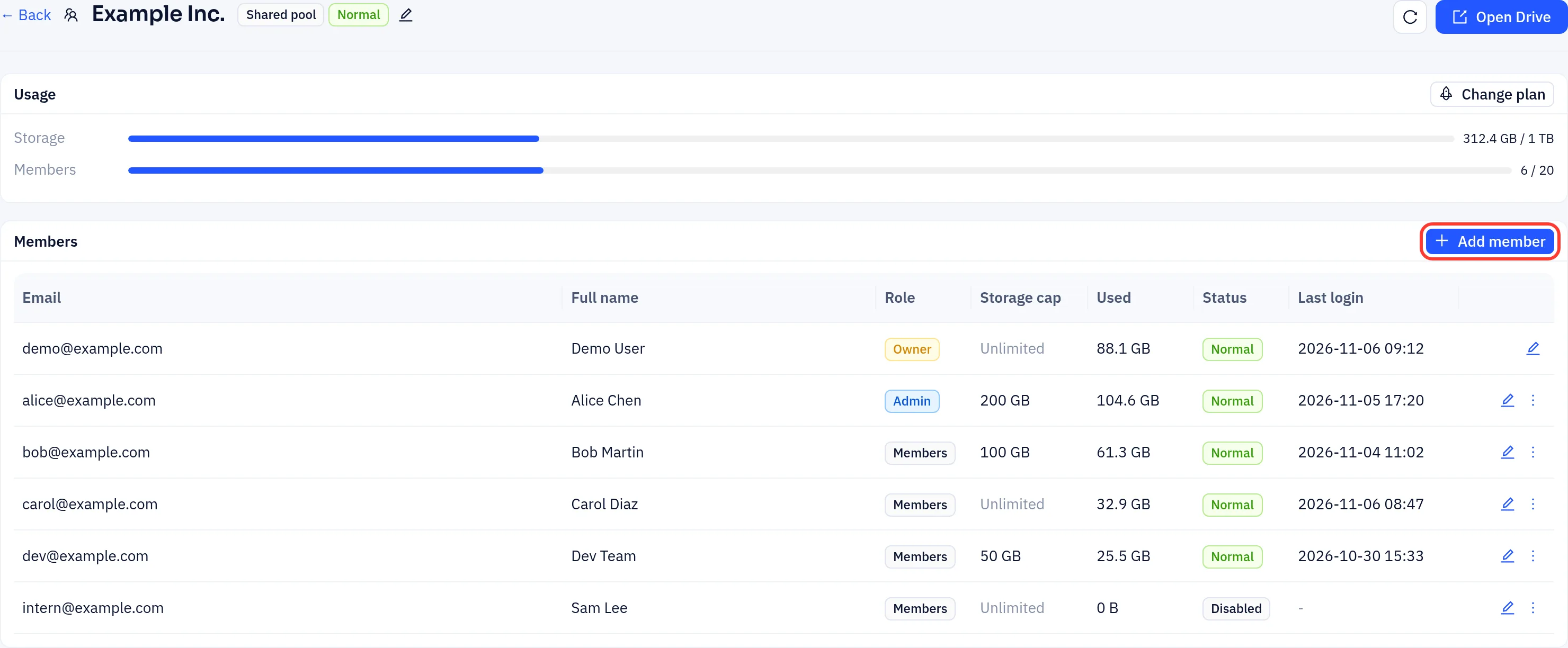
The Usage card shows the storage used and, for a shared pool, how many members you have out of the plan's limit. Change plan upgrades or downgrades the organization.
To add someone:
- Click Add member.
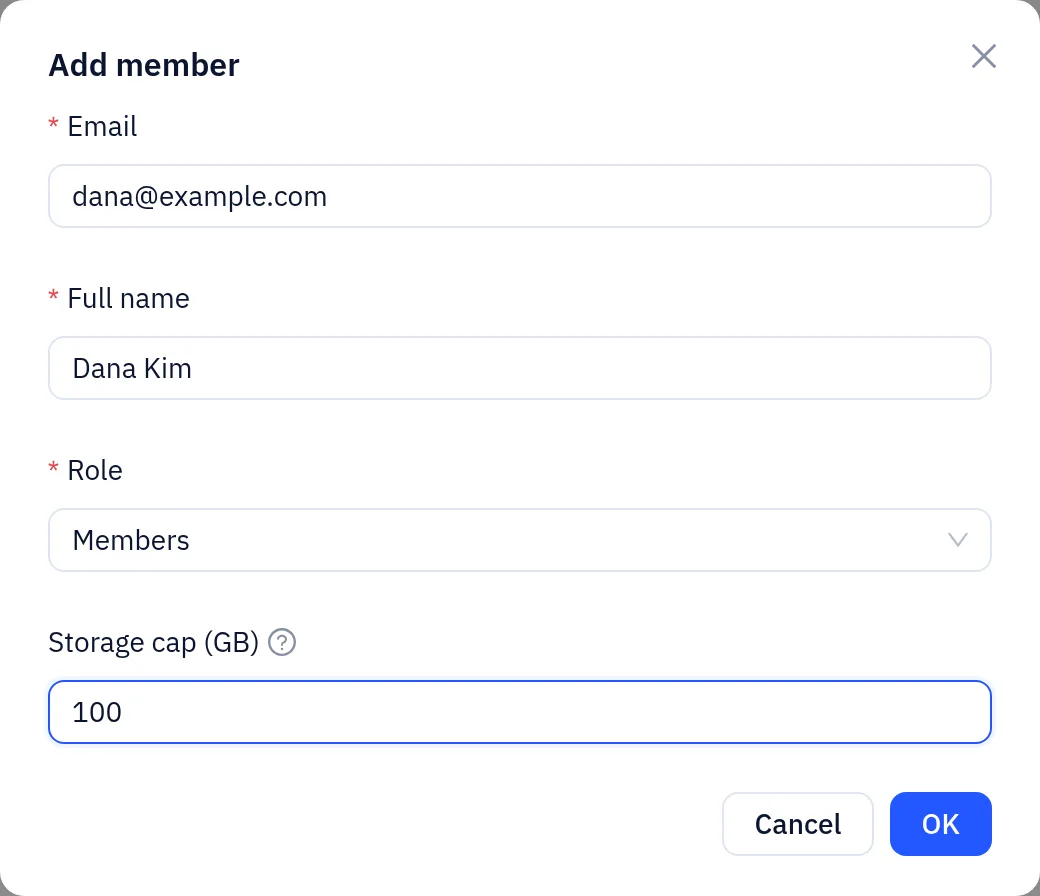
- Enter their Email and Full name.
- Choose the Role: Members use their own space; Admin can also add and manage members in the drive.
- On a shared pool, you can set a Storage cap (GB) for this member. Leave it empty to let them use the whole pool. On a per-seat plan, choose the seat to give them instead.
- Click OK.
- If the email belongs to a Yeap Cloud account, the person signs in with that account and switches to your organization in the drive.
- Otherwise an initial password is shown once. Copy it and send it to the member. They sign in at disk.yeap.cloud with their email and this password, and must change it at first sign-in.
Use the ⋮ menu on a member's row to Reset password (for members with a drive password), Disable or Enable the account, or Delete the member. When you delete a member, their files are moved to your "Former members" folder. Click the edit icon to change a member's name, role, or storage cap or seat. Click the pencil next to the organization name to rename it.
Per-seat organizations
On a per-seat plan, the Seats card shows how many seats of each size you have and how many are in use.
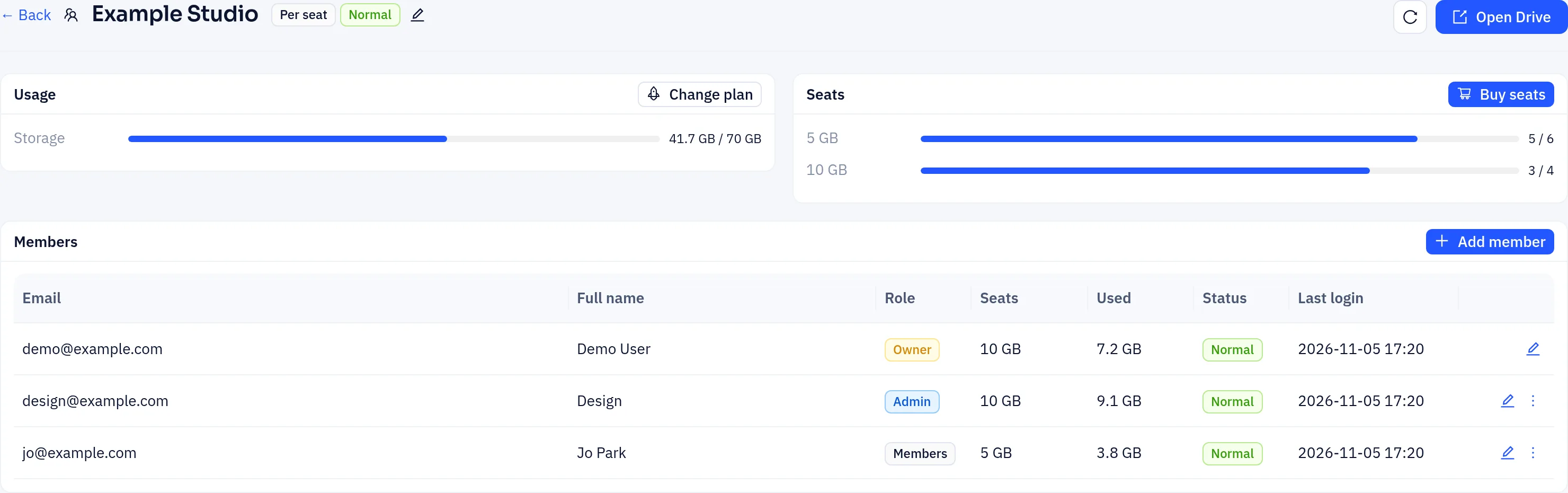
Click Buy seats to go to Add-ons, where you buy more 5 GB or 10 GB seats. New seats are charged for the remaining days and then renew with the plan. Each member needs a free seat; the owner's seat is optional.