Order and validate a certificate
Choose and pay for a certificate, submit your domain and complete DNS or HTTP domain validation.
This page explains how to choose and buy an SSL certificate, configure it, and prove domain ownership by DNS, HTTP or email validation.
Choose a certificate
In the console, open SSL certificates → Buy a certificate. Use the buttons at the top to filter by brand. Each product card shows:
- The product name and a type tag: DV, OV, EV, Wildcard or Multi-Domain
- The validity period (90 days for free certificates) or, for paid certificates, a term of 1 to 3 years that you pick on the card
- The price
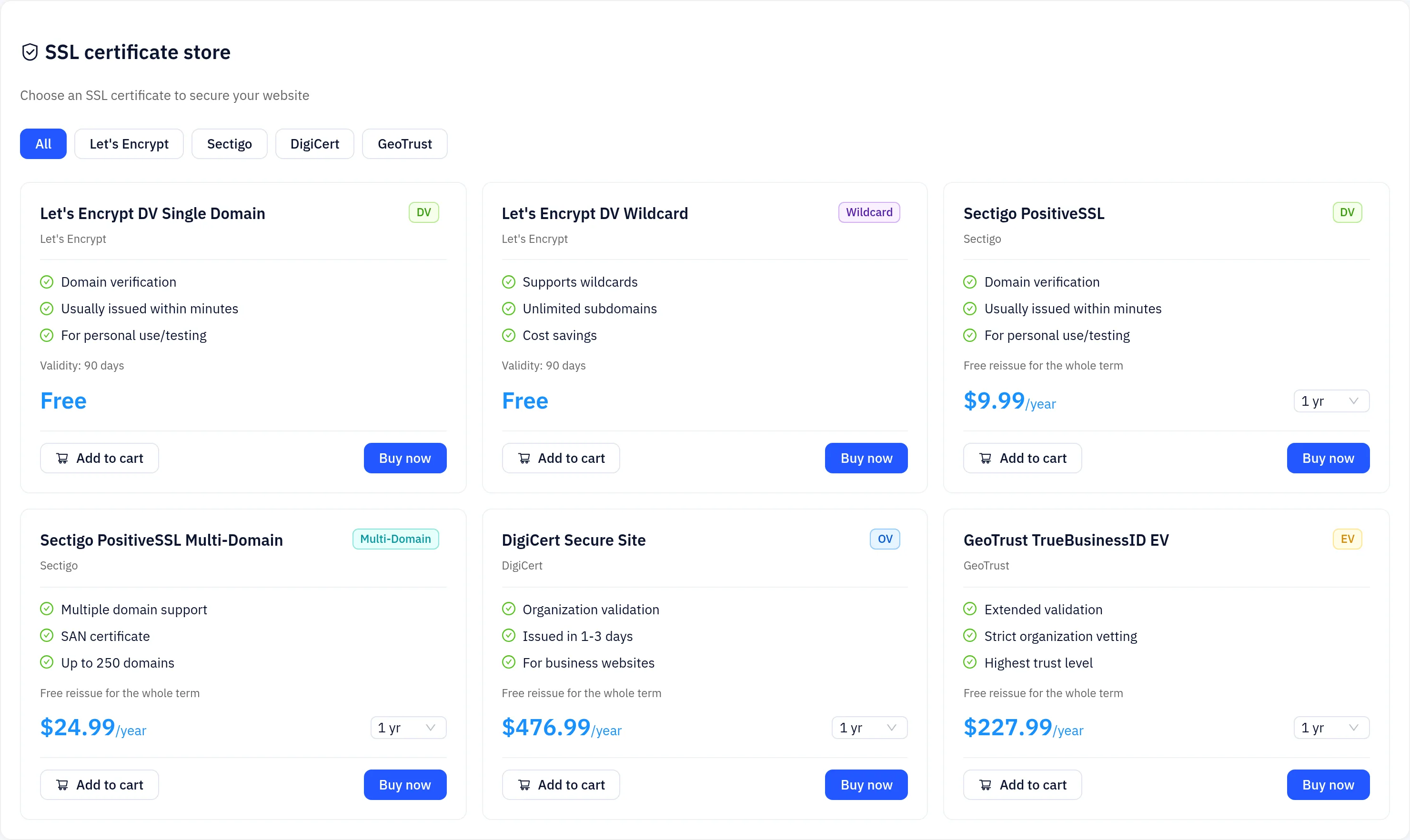
The catalog includes free Let's Encrypt and ZeroSSL certificates and paid certificates from brands such as Sectigo, RapidSSL, GeoTrust, Thawte and DigiCert. The store page is always the source of truth for products and prices.
How to pick:
- You only need HTTPS encryption: choose DV. Free DV certificates are valid for 90 days and renew automatically.
- You need every first-level subdomain (for example
*.example.com): choose Wildcard. Wildcard certificates can only be validated by DNS. - One certificate for several different names: choose Multi-Domain.
- You want your organization's identity in the certificate: choose OV or EV and have your company details ready.
Paid certificates are bought for a term of 1 to 3 years. Certificate authorities limit how long a single certificate can be valid, so during your term a new certificate is issued free before the current one expires.
Check out and pay
- On a product card click Add to cart, or Buy now to go straight to the cart.
- Check out. An invoice is created, and the order appears under SSL certificates → My certificates with status Payment pending.
- Pay the invoice (see Billing and invoices). The order changes to Setup pending.
Configure the certificate
- Under My certificates, click Configuration on the order (or open it from the Needs attention card on the Overview page).
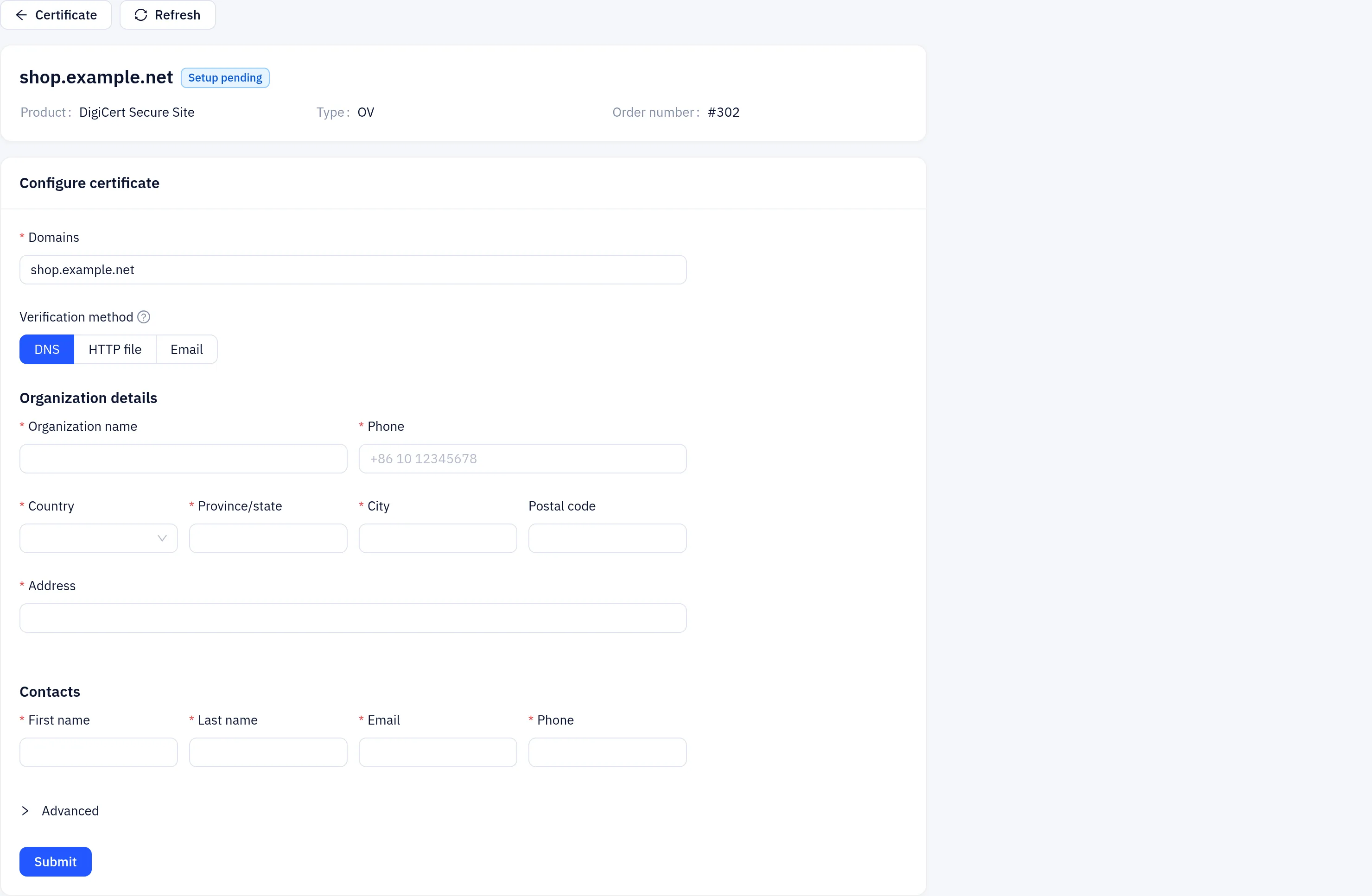
- In Configure certificate, enter:
- Domains: the primary domain. For a wildcard certificate use
*.example.com. - Additional domains (multi-domain certificates): the other names, up to the number the product allows.
- Verification method: DNS, HTTP file or Email (the methods the product supports).
- For OV and EV certificates: Organization details (name, phone, country, province/state, city, address; for EV also business type and registration number) and Contacts.
- Domains: the primary domain. For a wildcard certificate use
- Optionally open Advanced to choose the key type (RSA 2048 or ECDSA P-256), or select Use my CSR and paste your own CSR.
- Click Submit.
If you supply your own CSR, the platform never sees your private key and downloads will not include one. Keep it safe. With Auto-generate (recommended), the private key is available with the certificate download.
Complete domain validation
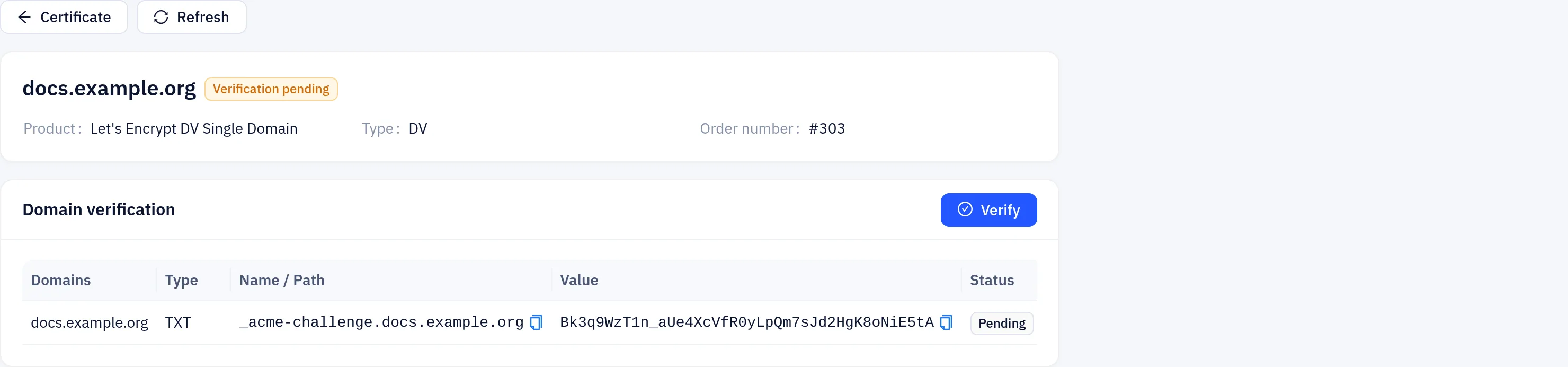
After you submit, the order shows Verification pending and a Domain verification table with the record or file to publish for each name.
If the domain is hosted on Yeap Cloud DNS or connected to Yeap Cloud CDN, the verification record is added for you automatically and no action is required.
DNS validation
Add the record shown in the table at your DNS provider, for example:
| Type | Name | Value |
|---|---|---|
| TXT | _acme-challenge.example.com | The value shown for your order |
- Always copy the name, type and value from your order; different certificate authorities use different names and record types.
- Wildcard certificates must use DNS validation.
- DNS changes usually take a few minutes to half an hour to become visible, longer with high TTLs.
HTTP validation
Publish the file shown in the table so that it is reachable at the path shown (under http://<domain>/.well-known/...). Make sure that:
- The domain resolves to the server hosting the file and port 80 is reachable.
- The URL returns the raw file content and is not intercepted by a login page, firewall or rewrite rule.
If the domain is behind a CDN, origin rules or caching can get in the way of the validation file. DNS validation is usually simpler in that case.
Email validation
The certificate authority sends a confirmation email to the address you selected. Open it and confirm. Click Resend verification email on the order if it doesn't arrive.
Issuance
Once your record or file is live, click Verify. You don't have to keep checking: the platform also checks pending orders automatically. When the certificate is issued, the order changes to Issued and you can download it (see Install and renew).
DV certificates are usually issued within minutes after validation passes. OV and EV certificates also require the certificate authority to vet your organization, which usually takes 1–5 business days; the CA may contact you using the details you provided.
Troubleshooting
- Validation never passes: confirm the record is visible publicly with
dig TXT _acme-challenge.example.comand that the value is complete, without extra quotes or spaces. For HTTP validation, open the validation URL with a browser orcurland check the response body. - The order shows Failed: the reason is shown on the order. If the CA rejected the order, click Contact support; otherwise fix the details and use Resubmit.
- No progress for a long time: open a ticket under Support → Tickets with the order number.