Coupons
Your coupon wallet: coupon types, adding a code, using a coupon at checkout, and coupons that apply automatically.
Coupons lower what you pay for Yeap Cloud services. Coupons you hold are kept in your coupon wallet under My coupons. You apply most of them in the cart, while some are applied automatically.
My coupons
Go to Billing → My coupons.
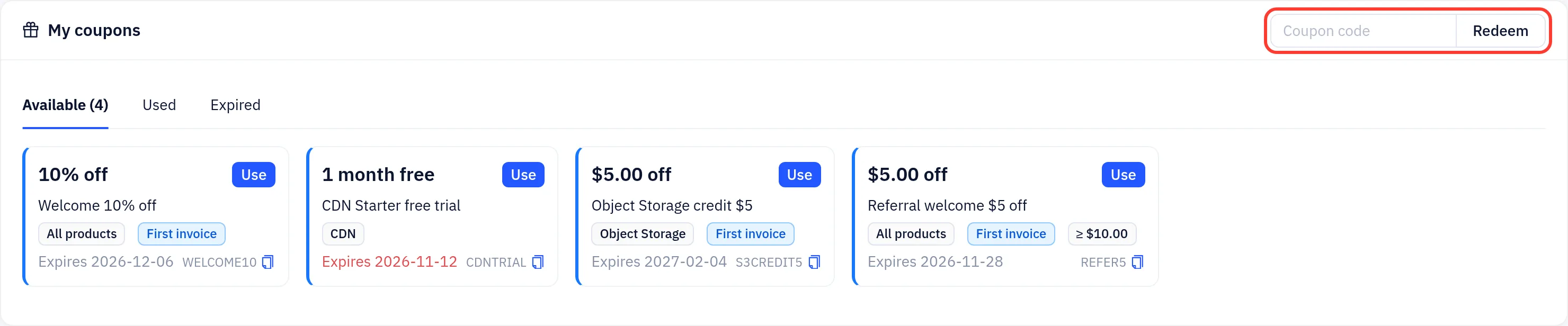
Each coupon card shows:
- The value, for example
10% off,$5.00 offor1 month free - The coupon name and, at the bottom, its code (click the copy icon to copy it)
- Where it applies: All products, one product type such as CDN, or specific plans
- How long it applies: First invoice, First N periods or Every renewal. This is shown for percentage coupons only
- Conditions, if any: a minimum spend (for example
≥ $10.00) or Up to N items - The expiry date. It turns red when the coupon expires within 7 days, and the Available tab shows a badge with the number of such coupons
The tabs split your wallet into Available, Used (with the invoice each coupon was used on) and Expired. A Campaigns tab appears while a promotion is running.
Coupon types
| Type | What you get |
|---|---|
| Percentage | A share off the eligible items. It may also cover renewals: the first invoice only, the first few billing periods or every renewal, as shown on the card |
| Fixed amount | A set amount off the order. Some fixed coupons have a minimum spend |
| Free trial | One billing period of a plan for free, for example one month of a CDN plan. You can use one free trial per product |
Add a coupon code
If you received a code, for example from a promotion:
- Go to My coupons.
- Enter the code in Coupon code at the top right and click Redeem.
The coupon is added to your wallet and appears on the Available tab. You can also type a code directly at checkout (see below).
Use a coupon at checkout
- Click Use on a coupon card. It takes you to where you can order a matching product. Or add products to your cart as usual.
- In the cart, pick the coupon from the My coupons list above the promo code field. The list shows the discount each coupon gives on this cart and greys out coupons that do not apply. Or enter a code in Promo code and apply it.
- The discount is shown in the order summary. Pay the invoice as usual.
Only items covered by the coupon are discounted. One coupon can be used per order. If the invoice is cancelled or expires unpaid, the coupon goes back to your wallet.
Coupons applied outside the cart
Some coupons are not used in the cart:
- Object Storage credit is deducted automatically from your monthly object storage bill. A fixed credit that one bill does not use up carries over to the next bills until it is used up or expires.
- LLM API coupons add extra quota when you move balance to your LLM account. Choose the coupon in Use a top-up coupon when you transfer.
Good to know
- Coupons for new accounts require a verified email address. See Getting started.
- An expired coupon cannot be used or extended.