Get started
Create your team, sign in to the team dashboard, add users and connect the Android or Linux client.
This page takes you from no team to a connected device: create the team, open the team dashboard, add users and sign in on a phone or a Linux machine.
1. Create your team
- In the console, open Security → Access & Verify.
- Enter a Team name (shown to your users) and a Team address. The address becomes
<address>.team.yeap.cloudand is also the team name users type in the app. Use 3 to 32 lowercase letters, digits or hyphens. - Click Get started free.
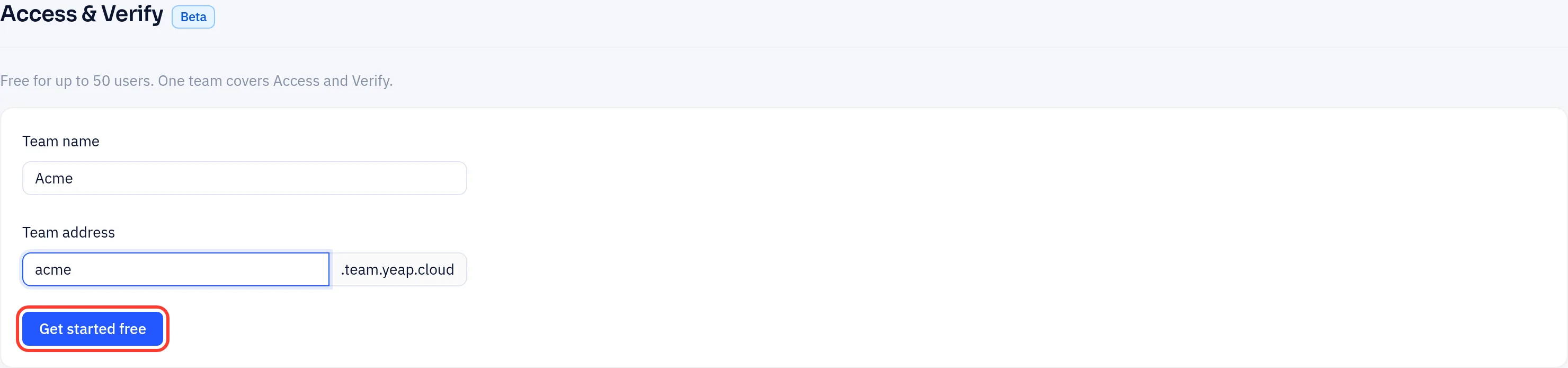
Setting up takes a few seconds. The page then shows your team, its plan and the number of users.
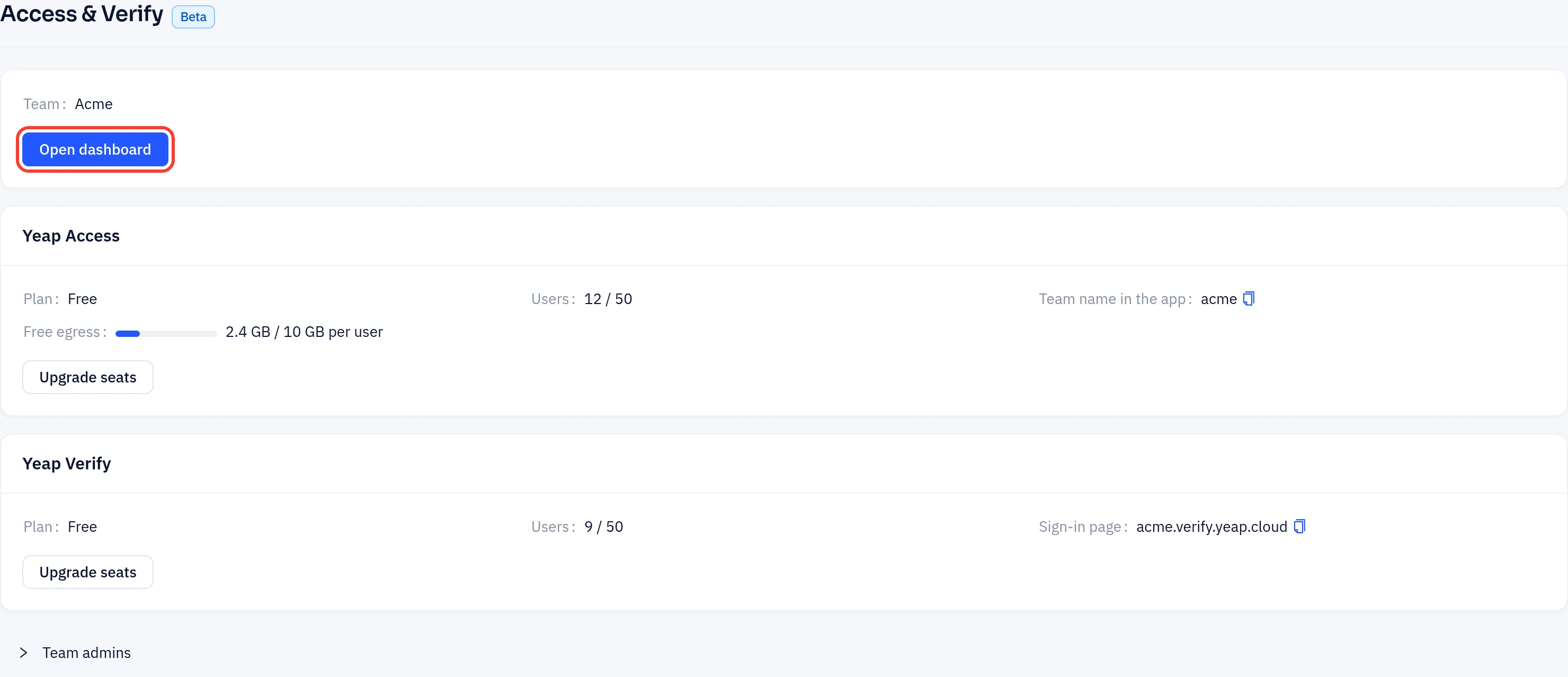
Each Yeap account can own one team. The team is free for up to 50 users. See Plans and billing.
2. Open the team dashboard
Click Open dashboard, or go to https://<address>.team.yeap.cloud. On the sign-in page, click Sign in with Yeap. You are signed in with your Yeap account, so there is no separate password to remember.
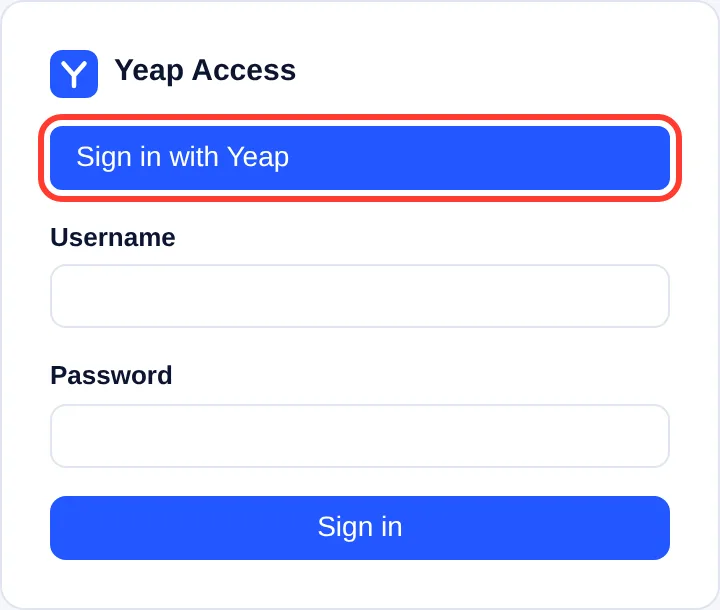
A new team is ready to use: Yeap's gateways are already assigned, and devices get addresses from 100.64.0.0/16 automatically.
3. Add users
Users are your employees. They do not need a Yeap account.
- In the dashboard, open Users and click Add user.
- Enter a Username, an optional Email and a Password (at least 10 characters). Optionally put the user in Groups; access rules are easiest to manage by group.
- Click Invite on the user's row to get a link and QR code for the app. A per-user invite works once. To invite anyone in the team, click Invite link instead and choose how long it is valid and how many times it can be used.
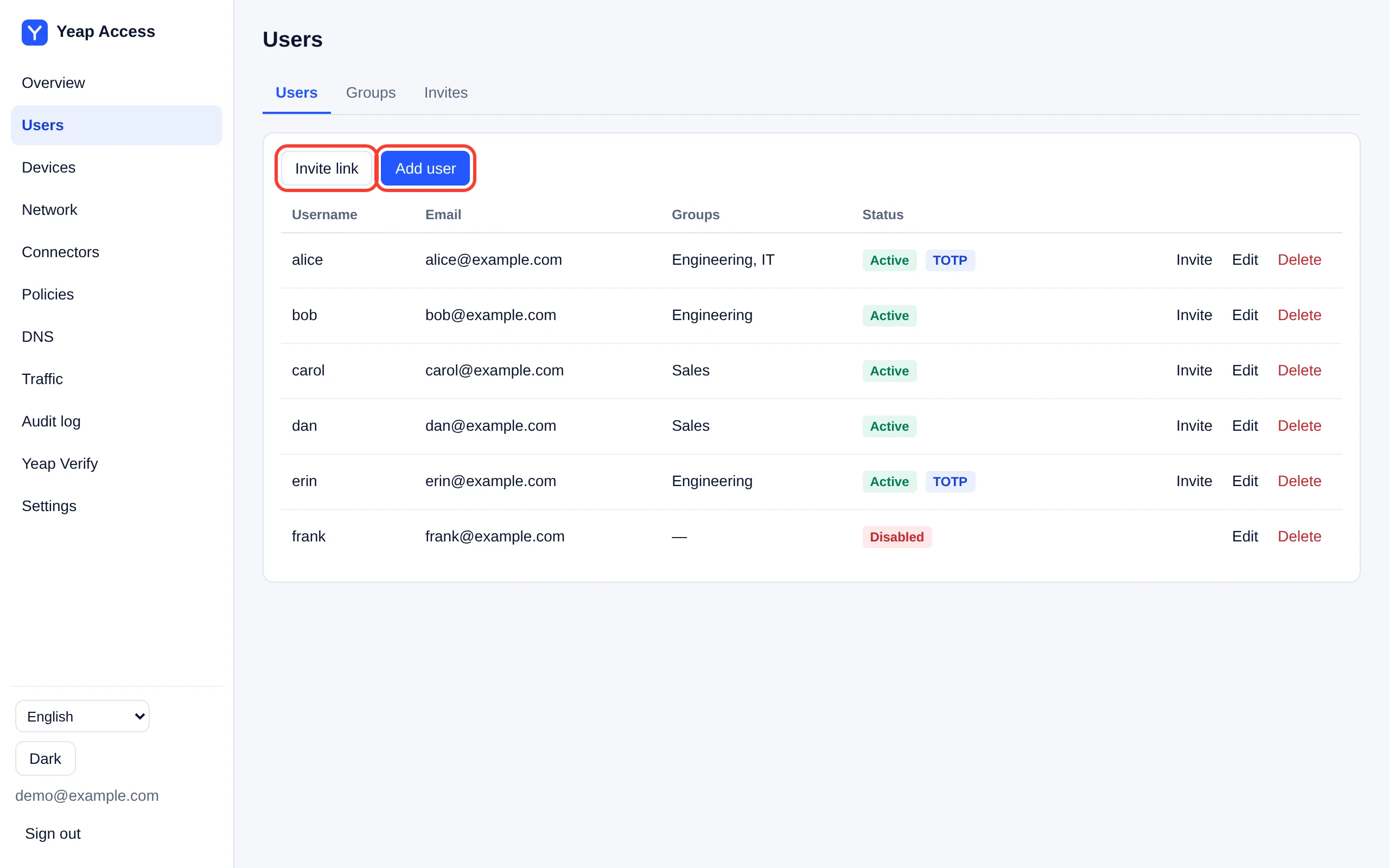
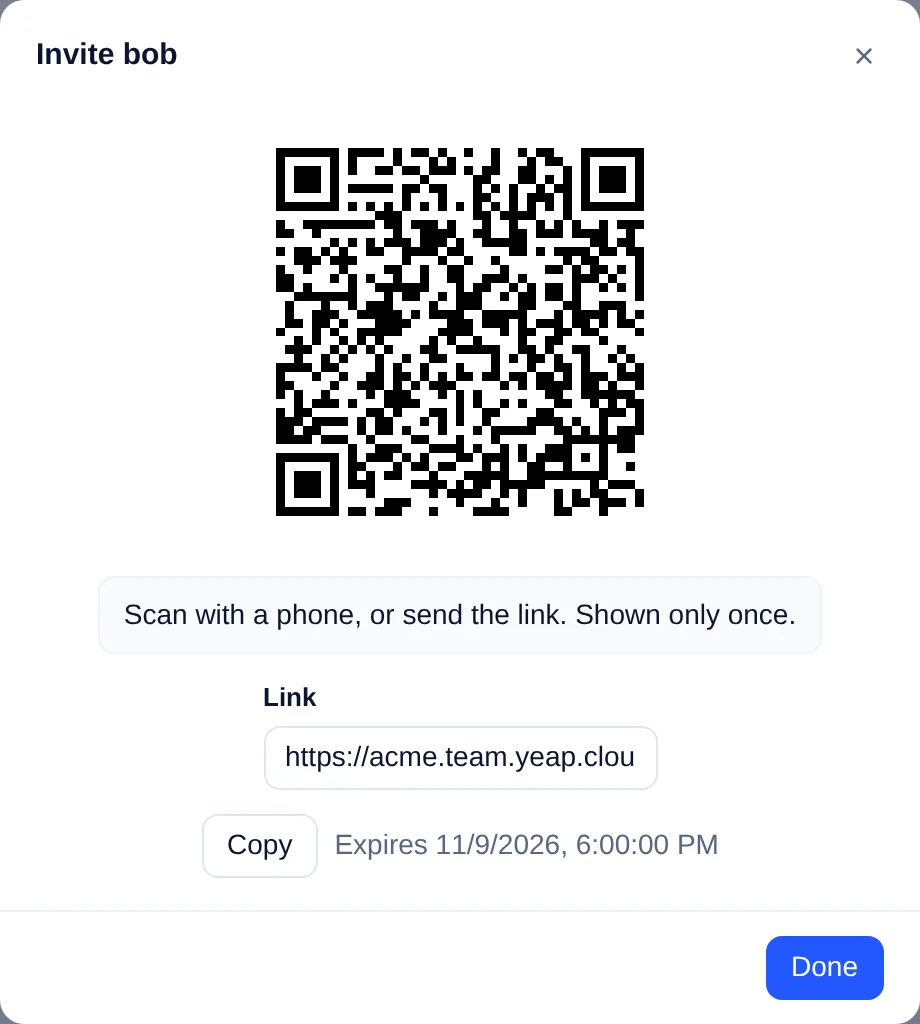
The invite only tells the app which team to join and pre-fills the username. The user still signs in with their password. Send the link to the user, or let them scan the QR code with their phone. The link and QR code are shown only once.
4. Allow access
Access rules deny everything by default. Before users can reach anything, add at least one rule under Policies. See Private DNS and access rules. To reach a network in your office or data center, install a Connector.
5. Connect a device
Users sign in with one of these, and never type a server address:
- the invite link or QR code;
- the team name, for example
acme; - settings pushed by your device management (Android managed configuration, or
/etc/yeap-access/client.tomlon Linux with the keyteam = "acme").
Android
- Install Yeap Access from
https://access.yeapcloud.net/apps/yeap-access.apk. - Open the invite link on the phone, or open the app and enter the team name.
- Sign in with the username and password, then connect. Android asks you once to allow the VPN connection.
Linux
Download the client from https://access.yeapcloud.net/apps/yeap-client-linux-amd64.tar.gz (-arm64.tar.gz for ARM, or yeap-client_amd64.deb for Debian and Ubuntu). Then sign in and connect:
yeap-client login --team acme --state ~/.yeap.json      # or --invite '<invite link>'
sudo yeap-client up --state ~/.yeap.json --allow-root-netns
To sign out, run yeap-client logout --state ~/.yeap.json.
Connected devices appear under Devices in the dashboard. Each device gets its own address, so devices can also reach each other when a rule allows it.
Add other admins
You can let other people manage the team with their own Yeap accounts. On the Yeap Access console page, open Team admins, enter the email of their Yeap account, choose Admin or Viewer (read only) and click Invite. They accept the invitation on their own console Yeap Access page and then open the dashboard the same way. Only you, the owner, manage the plan and billing.

To change a role, pick another one in the list. Remove ends that person's dashboard sessions at once.