Geo routing (lines)
Return different A/AAAA/CNAME answers by location, ISP or custom CIDR list.
Geo routing lets one hostname return different answers to visitors from different places. For example, you can send visitors in Asia to an Asian server, send users of one ISP to a dedicated IP, or send your office network to an internal address. Yeap Cloud DNS calls these conditions Traffic routing.
Routing lines work only on A, AAAA and CNAME records. Every other record type gives all visitors the same answer.
Kinds of lines
A record's routing line can be built from three kinds of conditions:
| Condition | Choices | Notes |
|---|---|---|
| Geolocation | Continent → country → province/region → city | You pick one level at a time and can stop at any level, for example at country |
| ISP | Pick a country, then an ISP type (such as ISP, MOB for mobile networks, or DCH for data centers), then search for the network | Matches the network that owns the visitor's IP |
| Custom route | The IP range lists you create under CIDR lists, plus preset lists provided by the platform | Matches when the visitor's IP is in any range in the list |
You can combine location and ISP, for example "China / Guangdong" plus one ISP. A record with no conditions at all is the hostname's default line. The record list shows it as Global.
How the visitor's location is determined: the nameserver looks at the IP address the query came from to work out location and ISP. If the recursive resolver sends client subnet information (EDNS Client Subnet) with the query, that subnet is used. Otherwise the resolver's own IP is used. So for visitors on a public resolver, the answer depends on whether that resolver sends client subnet information.
Set a line on a record
- Open the zone's records page.
- Add the default record first. Add a record with no line, for example name
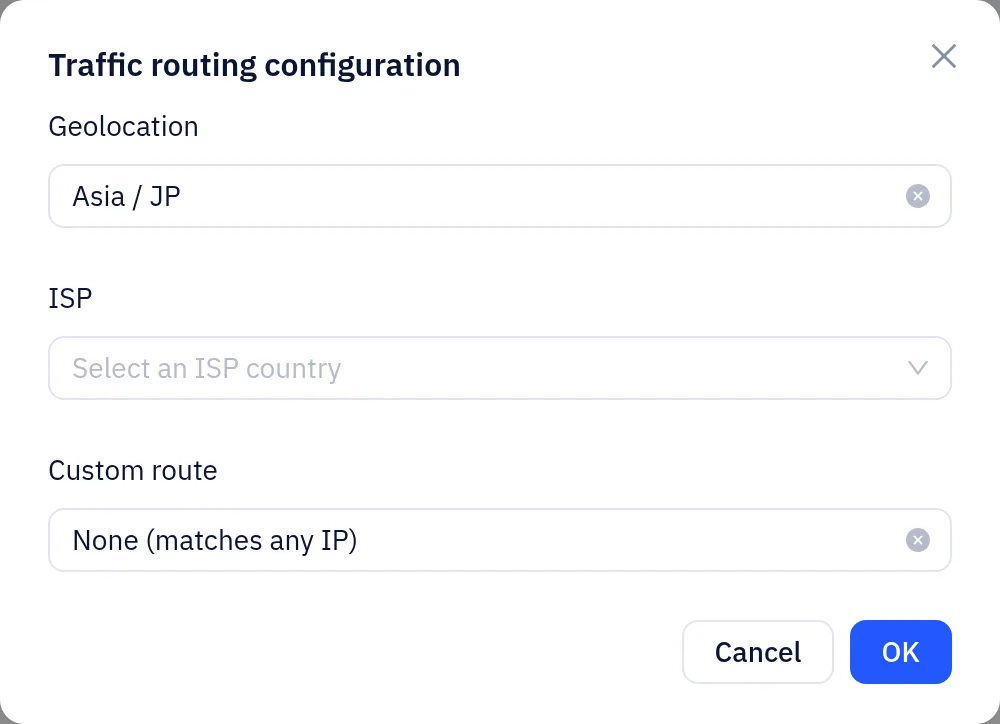
www, typeA, content203.0.113.10. - Add a second record with the same name and type, or click Edit on an existing one. While the row is in edit mode, click its Traffic routing cell to open the Traffic routing configuration window:
- Geolocation: pick continent, country, province/region and city. Each level has an "All" option, which means don't narrow further.
- ISP: pick a country and an ISP type, then search for the ISP.
- Custom route: pick a CIDR list.
- Click OK to close the window, then save the record.
The Traffic routing column in the record list shows each record's line. Hover over it to see the full conditions. The Location filter above the list lets you show only Geolocation or Global default records.
Before you add a record with a line for a hostname, a default record with the same name and type must exist. Otherwise you'll get an error saying a default record must be created first. In the same way, you can't delete the default record while records with lines still exist for it. This makes sure every visitor always gets an answer.
How matching works
For each query, the nameserver looks at the records with the same name and type and picks the set that best matches the visitor:
- A more precise location wins: city > province/region > country > continent.
- A record with an ISP set matches only if the visitor's ISP is the same. When it does match, it beats a record at the same location level with no ISP set.
- A record with a custom line matches only if the visitor's IP is in that CIDR list. A record that has only a custom line (no location and no ISP) ranks at the same level as a continent match when it matches. That is below country-level and more precise location lines.
- If no record with a line matches, the default record is returned.
For example, say www has three A records: the default 203.0.113.10, "Asia" 198.51.100.20, and "Asia / Japan" 198.51.100.30. A query from Japan gets 198.51.100.30, a query from Singapore gets 198.51.100.20, and a query from Europe gets 203.0.113.10.
If an IP range such as your office egress must always get a particular answer, don't give the same hostname a more precise location record that those visitors would also match.
Multiple records and weights
You can have several records with the same name and type on one line, for simple load sharing:
- A / AAAA: all matching records are returned, in a random order each time. The record's Priority field acts as a weight here. A higher value makes the record more likely to come first. A blank or 0 counts as weight 1. When all records have the same weight, the order is fully random.
- CNAME: only one record is returned each time, picked at random by weight.
Weights only change how likely each answer is. The platform doesn't health-check your servers or drop failed addresses automatically.
Custom lines (CIDR lists)
Create a CIDR list
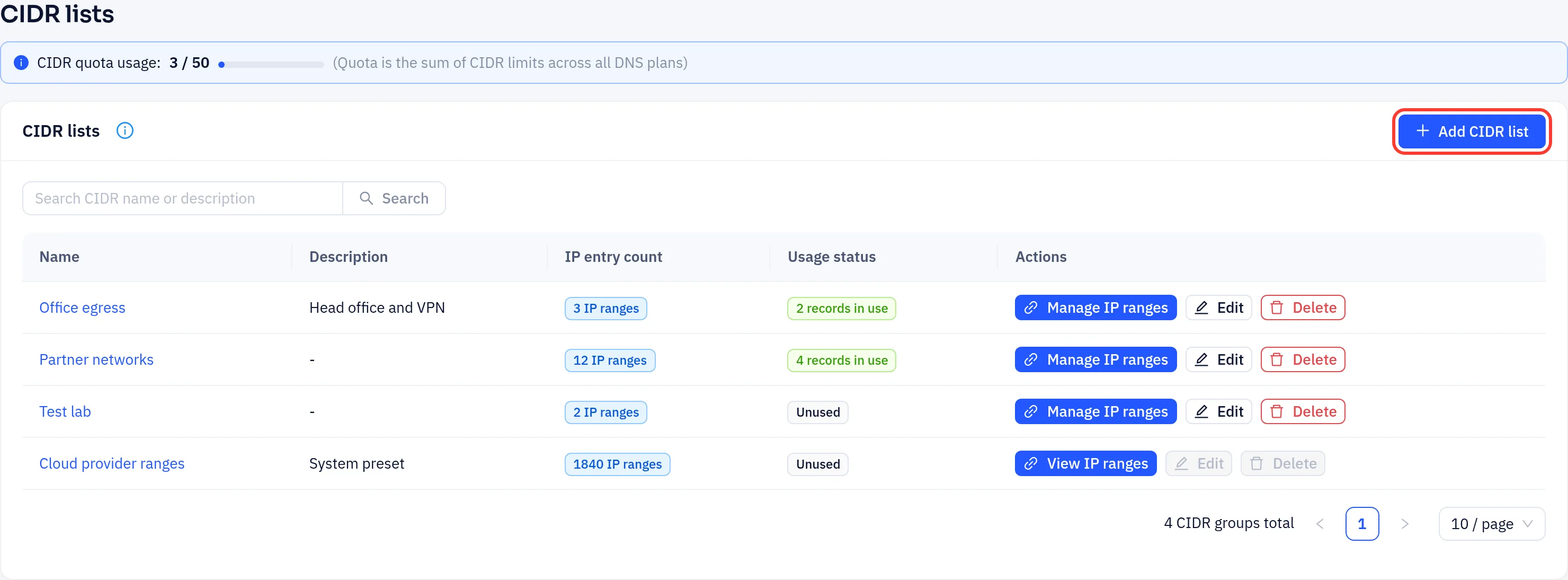
- Go to DNS → CIDR lists. The top of the page shows CIDR quota usage. The quota is the total CIDR allowance across all your DNS plans.
- Click Add CIDR list. Enter a CIDR name such as "Office egress" and an optional description, then save.
- In the list, click Manage IP ranges on the list's row to open its entries page.
Add IP ranges
Click Add entry. Enter the CIDR (for example
192.0.2.0/24or2001:db8::/64), an optional description, and the IP version: Auto-detect, IPv4 or IPv6. The version you pick must match the address.Or click Bulk import and enter one entry per line in this format:
textCIDR|description|IP version 192.0.2.0/24|Office egress|ipv4 2001:db8::/64|IPv6 test networkYou can leave out the IP version. It defaults to auto-detect.
Select several entries and use Bulk actions to delete them or change their IP version together.
System preset lists come from the platform. You can use them in records and open them with View IP ranges, but you can't edit them.
Use a list in a record
In Traffic routing configuration, pick the list under Custom route. The Usage status column on the CIDR lists page shows how many records use each list.
The system doesn't stop you from deleting a CIDR list that records still use. Before you delete a list, make sure its Usage status shows Unused, or change the records that use it first. Otherwise those records lose the match conditions you meant them to have.
Changes to CIDR entries take some time to reach every nameserver. To check the result, run dig www.example.com @<assigned-nameserver> from inside the target range.