Support tickets
Open a support ticket, link it to a service, attach files, follow up on replies and close or reopen it.
Open a support ticket when you need help from the Yeap Cloud team: a problem with a service, a billing question or a pre-sales enquiry. Tickets keep the whole conversation, your attachments and the service it is about in one place.
Your tickets
Go to Support → Tickets in the sidebar.
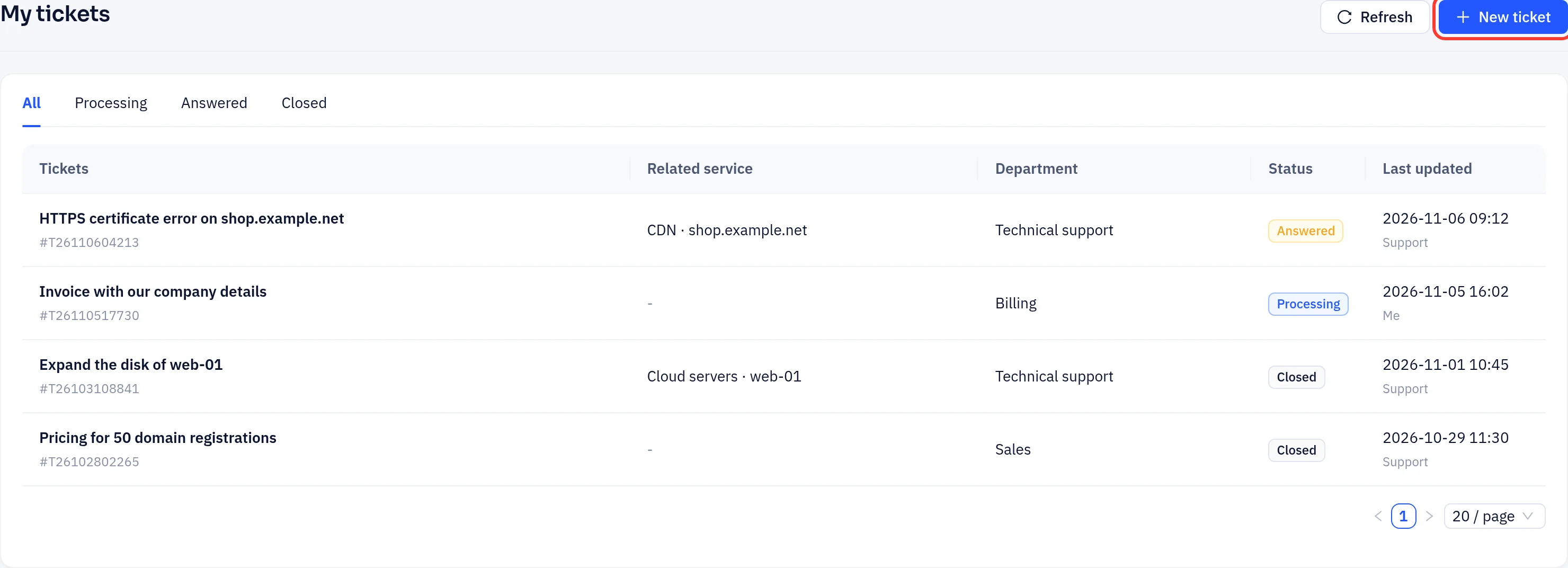
The list shows each ticket's subject and number, the related service, the department, the status and when it was last updated (and by whom: Support or Me). Use the tabs to filter by status. Click a ticket to open it.
| Status | Meaning |
|---|---|
| Processing | Waiting for support. New tickets and tickets you replied to are in this state |
| Answered | Support has replied and is waiting for your response |
| Closed | The ticket is closed. You can still reply to reopen it |
Open a ticket
- Click New ticket.
- Pick a Department:
- Technical support: product use, faults and configuration
- Sales: pre-sales questions, custom solutions and quotes
- Billing: bills, payments, refunds and invoices
- Optional: under Related service, choose the product type, then the Service the ticket is about, for example a CDN site or a cloud server. Only services in your account are listed. Support then sees exactly which resource you mean.
- Set the Priority: Low, Standard, High or Urgent.
- Enter a Subject (one sentence) and a Description. Include what you did, what you expected and what happened, plus any error messages.
- Optional: click Attach files to add screenshots or logs.
- Click New ticket at the bottom of the form to submit it.
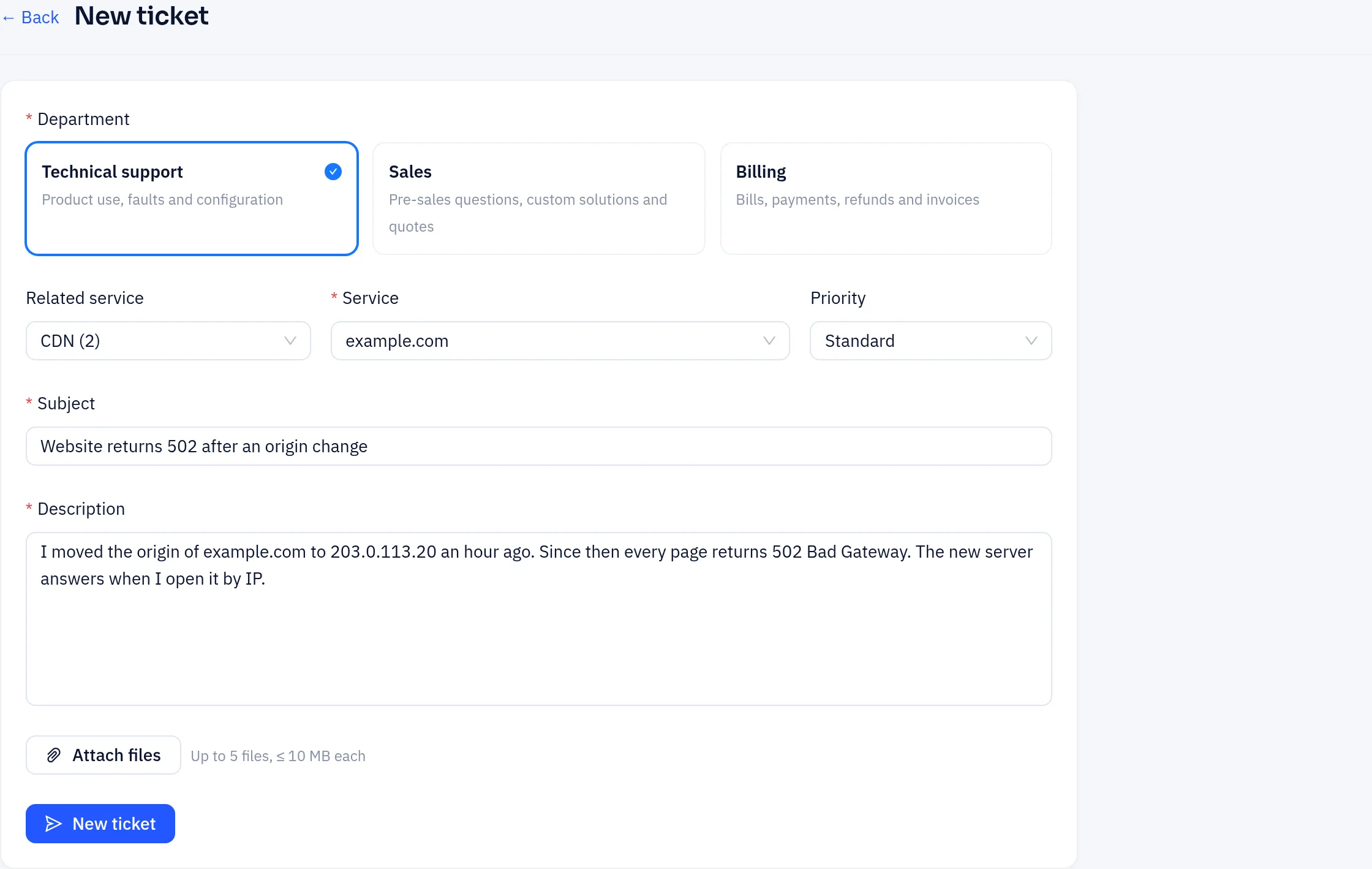
Attachments: up to 5 files per message, 10 MB each. Allowed types: png, jpg, jpeg, gif, webp, pdf, txt, log, zip, json, csv.
Follow up
Open a ticket to see the conversation. Your messages are on the right, replies from support on the left. The page checks for new replies every 30 seconds while it is open.
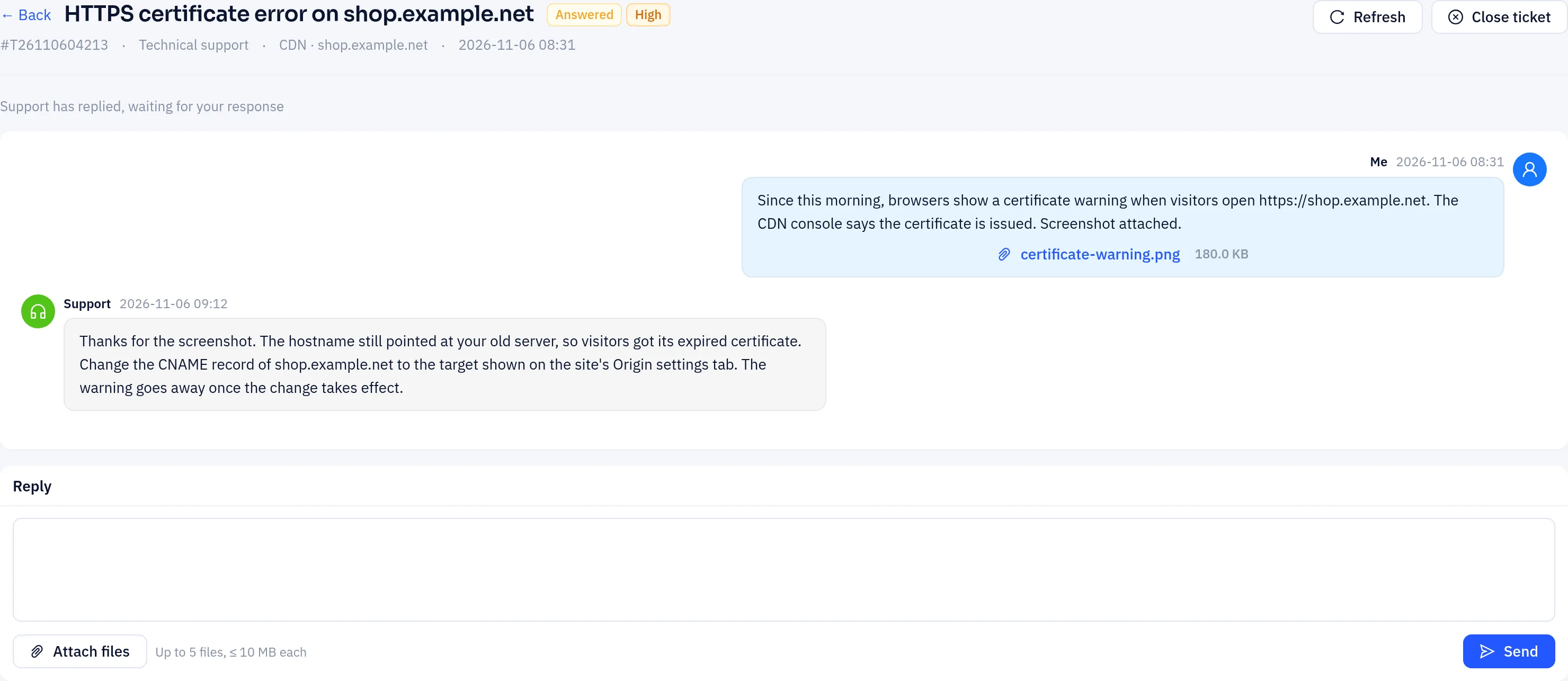
- Reply: type in the Reply box, attach files if needed and click Send. Press Ctrl+Enter (⌘+Enter on Mac) to send from the keyboard.
- Close: click Close ticket when your issue is solved.
- Reopen: reply to a closed ticket. The button reads Reply & reopen and the ticket goes back to Processing.
Notifications
When support replies or changes the status of your ticket, you are notified in the console inbox and by email (and on Telegram if you have connected it), in the language of your account. You do not need to keep the ticket page open.