Getting started with WordPress hosting
Order a WordPress plan, point your domain, and log in to your new site.
This page takes you from ordering a WordPress plan to logging in to your new site.
Order a plan
- In the console, open the shared hosting order page: go to Shared hosting → Hosting accounts and click Create virtual host. If you already have a WordPress site, you can also click Buy on the Shared hosting → WordPress page.
- Select region: pick where the site is hosted.
- Select plan: switch to WordPress at the top, then click a plan.
- Configuration:
- Primary domain: the site's domain, for example
example.comorblog.example.com. - Site language: the language of WordPress and its admin area.
- Admin username: optional. Leave it empty and one is generated for you.
- Primary domain: the site's domain, for example
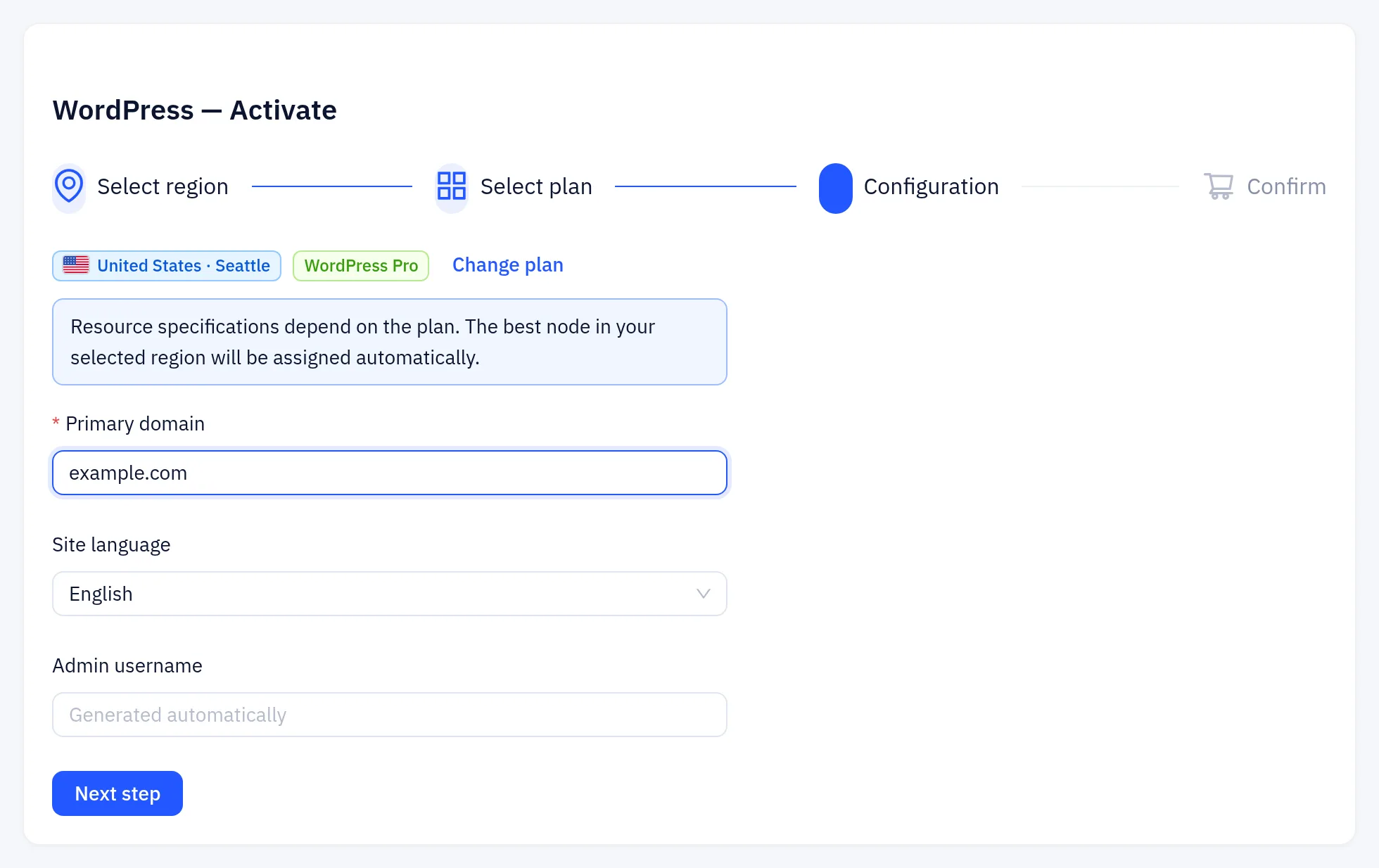
- Click Next step, check the order, click Add to cart, and pay it from the cart.
Wait for the installation
After payment, open Shared hosting → WordPress. The site shows Activating while the hosting account is created, then Installing. This usually takes a few minutes, and the page refreshes on its own. When it shows Running, the admin details appear.
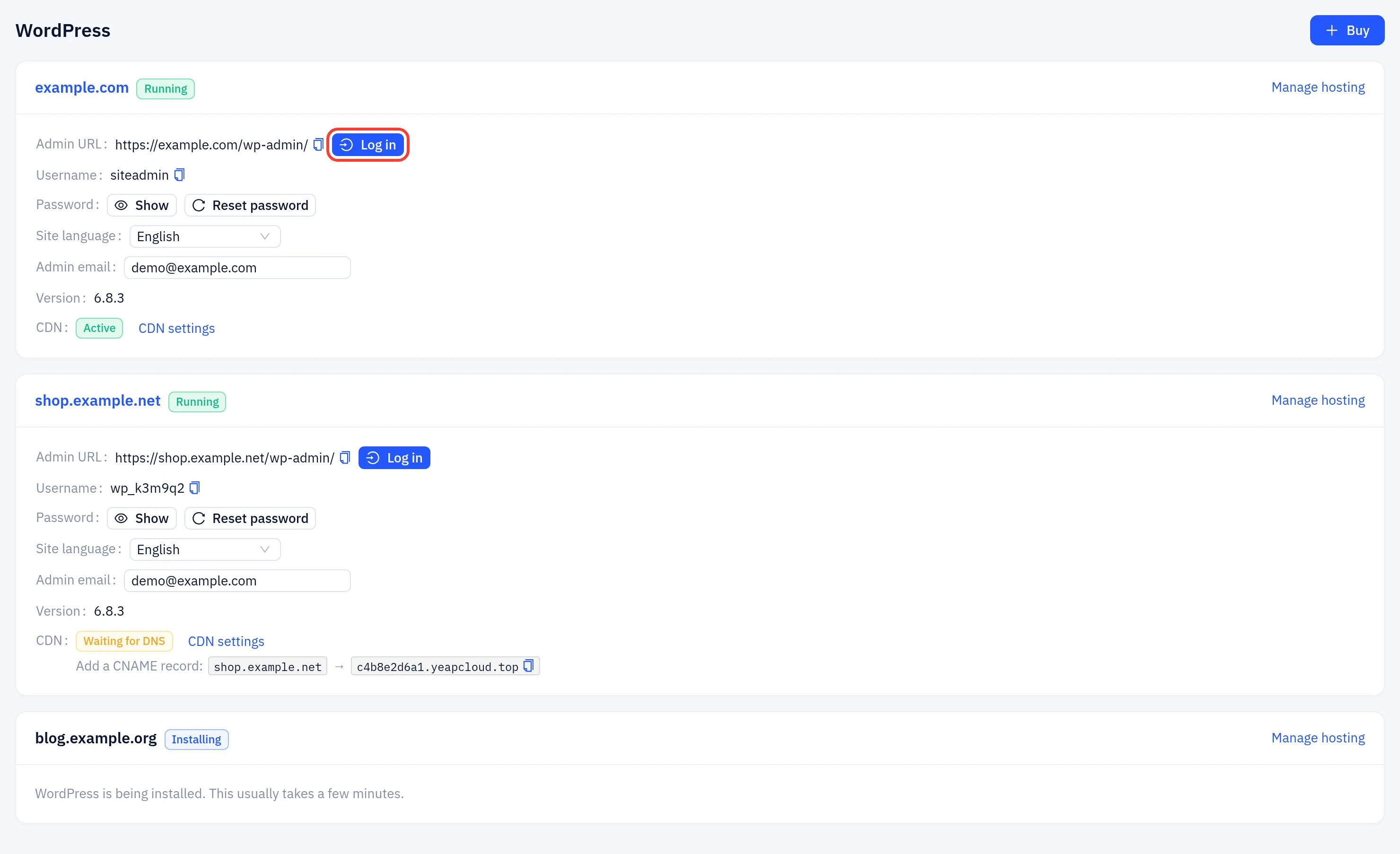
If the status is Failed, we have been notified and will fix it. You don't need to order again.
Point your domain
The site is connected to the CDN (free plan) automatically, with HTTPS.
- If the domain's DNS is hosted in Yeap Cloud DNS on the same account, the records are set for you.
- Otherwise the CDN line shows Waiting for DNS and the record to add, for example Add a CNAME record:
example.com→c….yeapcloud.top. Add it at your DNS provider. When the domain is a root domain, a second CNAME forwwwis shown too.
Until DNS points to the CDN, visitors can't reach the site on its domain. When it does, the CDN line turns Active. A root domain also works with www, which redirects to the main domain.
Some DNS providers don't allow a CNAME on a root domain (example.com). Use the provider's CNAME flattening or ALIAS record, or move the domain's DNS to Yeap Cloud DNS.
Log in
Click Log in next to Admin URL. The WordPress dashboard opens in a new tab, already signed in. The link is single-use and expires after a minute, so click Log in again whenever you need it.
You can also open the Admin URL (https://<your domain>/wp-admin/) and sign in with the Username and Password shown on the page. See Manage a site.