DNS overview and plans
What Yeap Cloud DNS does, per-zone plans and quotas, binding and changing plans, query analytics and one-click record setup.
Yeap Cloud DNS answers authoritatively for your domains. Once a domain's nameservers point to the platform, recursive resolvers everywhere (ISP resolvers, public resolvers and so on) send their queries for that domain to our nameservers. The nameservers run in multiple regions. Changes you make in the console are synchronized automatically to every nameserver that serves the zone.
What the service does
- Authoritative DNS hosting: each domain is one DNS zone. The common record types are supported: A, AAAA, CNAME, MX, TXT, NS, SRV, CAA and PTR. Wildcard names (
*) and internationalized domain names (such as中国.com) also work. See Zones and records. - Geo routing (lines): A, AAAA and CNAME records can return different answers by continent, country, province/region, city, ISP or a custom CIDR list. Queries that match no line get the default record. See Geo routing.
- DNSSEC: turn on DNSSEC signing for a zone in one click. The console shows the DS record to submit at your registrar. See DNSSEC.
- Bulk import and zone file download: paste or upload many records at once, and download the zone file for your records at any time.
- Query analytics: query statistics by zone and time range.
Plans and billing model
You buy a DNS plan per zone. Each zone uses one DNS plan subscription. A regular plan covers one zone; DNS Multi-zone covers up to 5 zones. A free plan takes effect right away. A paid plan takes effect once its invoice is paid.
At the time of writing there are five tiers. To compare prices and features, open a zone's plans page (see below).
| Plan | Zones per plan | Records per zone | DNSSEC |
|---|---|---|---|
| DNS Free | 1 | 100 | No |
| DNS Basic | 1 | 1,000 | No |
| DNS Pro | 1 | 5,000 | Yes |
| DNS Multi-zone | 5 | 5,000 | Yes |
| DNS Enterprise | 1 | Unlimited | Yes |
Keep in mind:
- The record quota applies to each zone. The SOA record and root NS records that the system creates don't count. When a zone reaches its limit, adding a record fails. In a bulk import, each entry past the quota fails individually.
- Free and paid plans use different nameserver sets. The console shows the nameservers assigned to each zone.
- An account can have up to 50 DNS zones. Deleted zones don't count toward this.
- Your CIDR list quota is shown at the top of the CIDR lists page. It is the total of the allowances from all your active DNS plans.
Choosing and changing a zone's plan
- When you add a zone, the wizard's Select a plan step lists the plans you already own that still have room under Bind to an existing plan, and the plans you can buy under Buy a new plan.
- Later, in DNS → Zones, click ⋮ → Plan on the zone's row. The Plan panel shows the zone's plan and expiry date, with Upgrade / downgrade and Transfer plan. A zone without a plan shows Select a plan instead.
Upgrade / downgrade opens the zone's plans page, with the current plan marked:
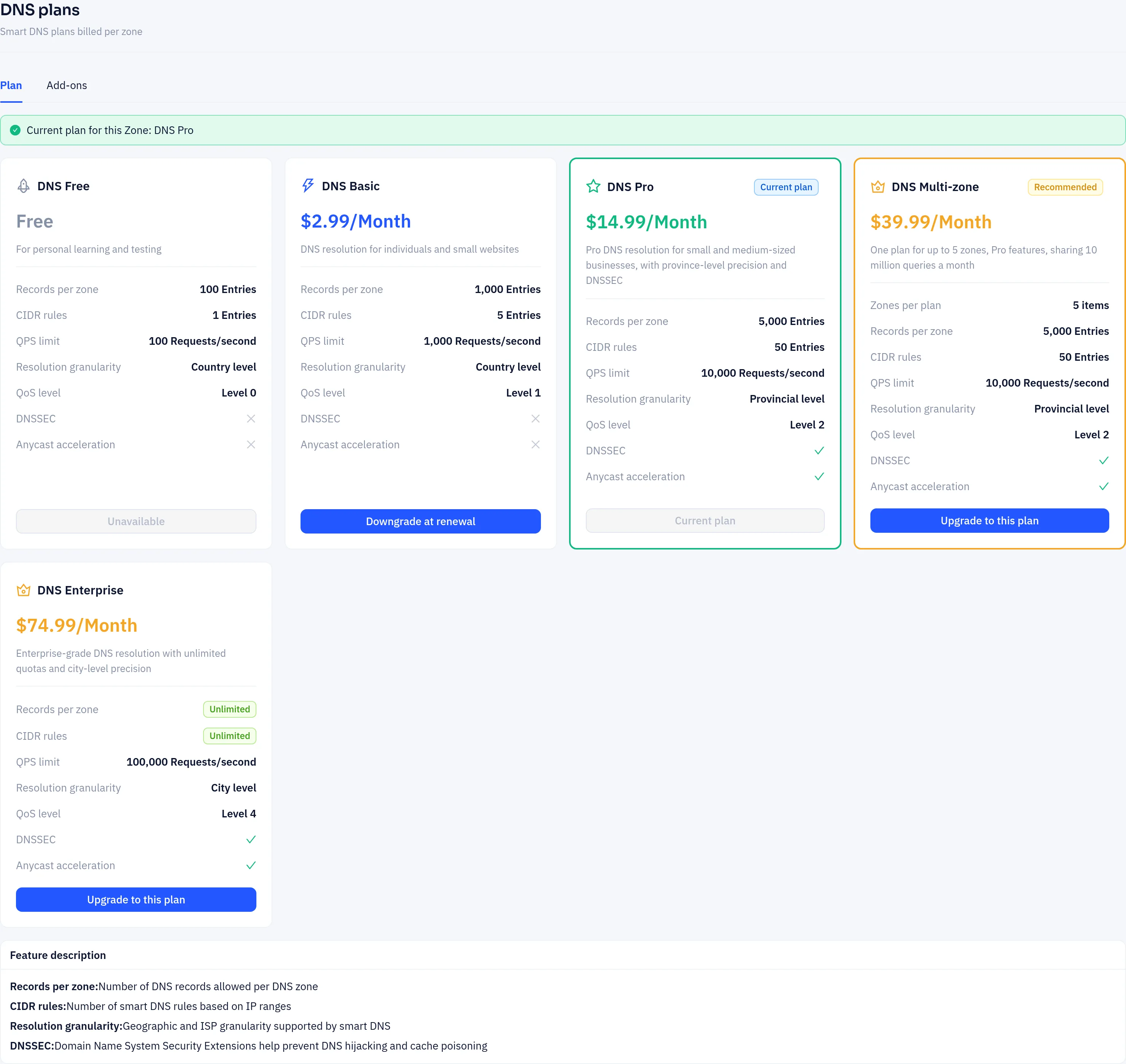
- Upgrade to this plan: the price difference for the rest of the current term is due now. The new plan takes effect after payment and the expiry date stays the same.
- Downgrade at renewal: the lower plan applies when the next renewal is paid. You can cancel a scheduled downgrade before then.
- The Add-ons tab sells extra DNS queries or records for the current paid plan. Free plans can't buy add-ons.
- A change is refused if the zone doesn't fit the new plan, for example it has more records than the plan allows, or DNSSEC is on and the plan doesn't include DNSSEC. Delete records or turn DNSSEC off first.
Transfer plan moves the plan and its expiry date to another of your zones. The other zone must be on the free plan or have no plan, and this zone drops back to the free plan. With DNS Multi-zone, the Plan panel also lists the zones that share the plan: use Bind to add one of your zones and Unbind to remove it.
If the new plan uses a different nameserver set (for example free to paid), the zone shows NS update pending and the records page shows the new nameservers. Update them at your registrar. The old nameservers keep answering until the change is detected, so resolution isn't interrupted. After you change them, the switch completes automatically within about 10 minutes, or right away when you click Check NS.
Query analytics
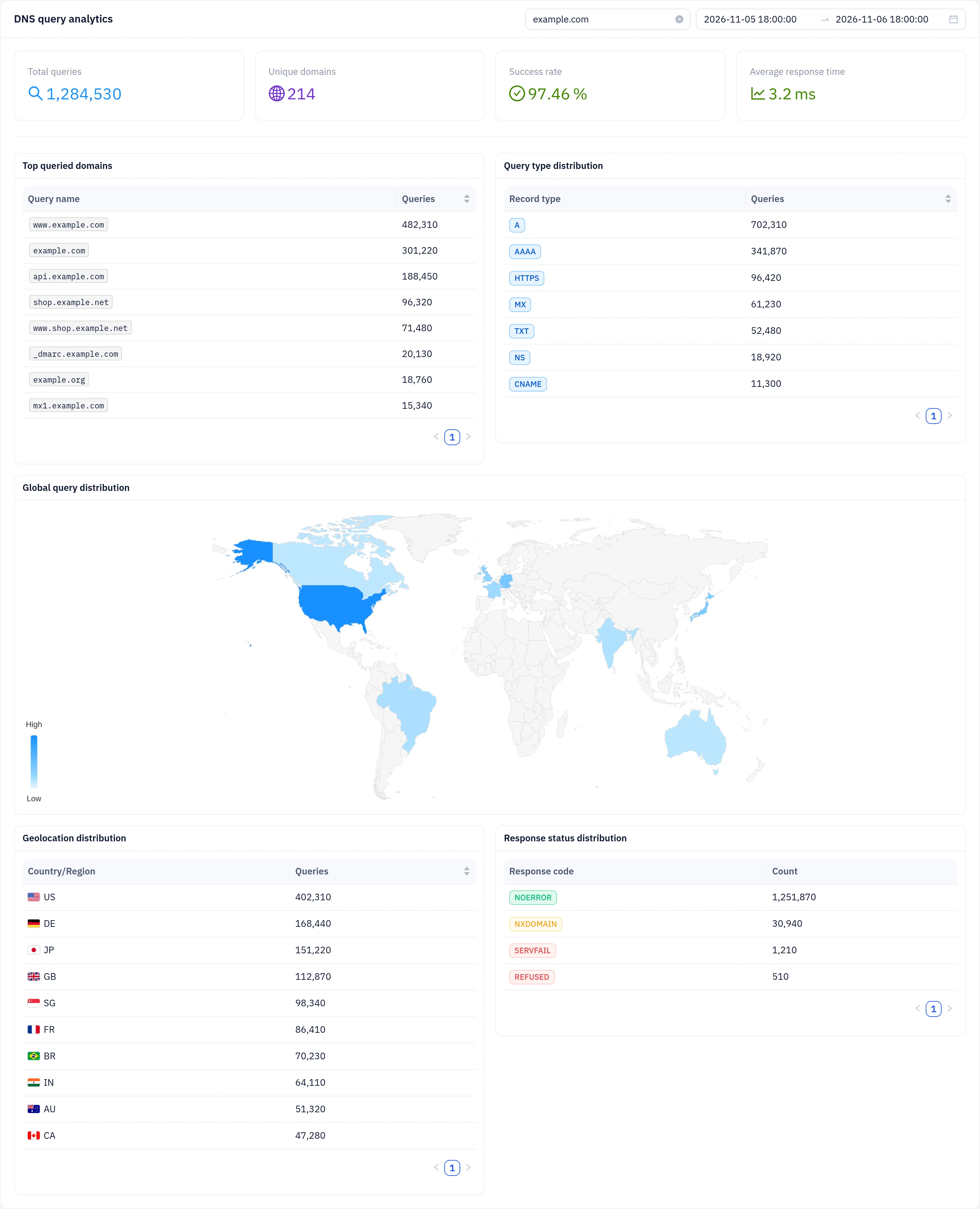
Open DNS → Query analytics to see the DNS query analytics page:
- Use the drop-down at the top right to pick a zone. Leave it empty to see all of your zones.
- Use the date-time range picker to set the start and end time. The default is the last 24 hours.
- The page shows:
- Summary cards: total queries, unique domains, success rate and average response time.
- Top queried domains.
- Query type distribution: the share of A, AAAA, MX and other types.
- A world map and a table of the countries and regions queries come from.
- Response code distribution: counts of NOERROR, NXDOMAIN and so on.
Each zone's records page also has a statistics bar at the top (current plan, records used, recent queries). Expand it to see the query trend for the last 7, 14 or 30 days.
Lots of NXDOMAIN answers usually mean clients are asking for hostnames that don't exist. Compare against the top queried domains to find records you forgot to add.
One-click record setup (DNS authorization)
Some Yeap Cloud services need DNS records: business email (domain settings, mail client setup, BIMI logo) and email sending domains. Instead of adding MX, SPF, DKIM, DMARC and similar records one by one, use the one-click DNS block shown on those pages:
- The block lists every record the service needs, with type, record name and value.
- If the domain is hosted on Yeap Cloud DNS, each record is tagged Already exists, To add, Will merge or Conflict. Click Add in one click (shown as "Add all (n)" when records are missing) and confirm. Missing records are added, and SPF values are merged into your existing SPF record.
- A record tagged Conflict is left unchanged unless you tick Replace next to it; the confirmation lists what will be deleted and replaced. If it shows "Fix manually", change it yourself on the zone's records page.
- If the domain's DNS is hosted elsewhere, click Check to see whether each record is already live in public DNS (Active, Not detected, Mismatch). Add the missing records at your DNS provider, or click Host it to move the domain to Yeap DNS first.
Records take effect once the domain's nameservers point to Yeap DNS; the block warns you if they don't yet. If the zone's plan doesn't have enough record quota left, the block says so and offers Upgrade plan.