Snapshots and backups
Disk snapshots for quick rollback, and scheduled off-site Auto backup.
Both live on the instance's Snapshots & backups tab.
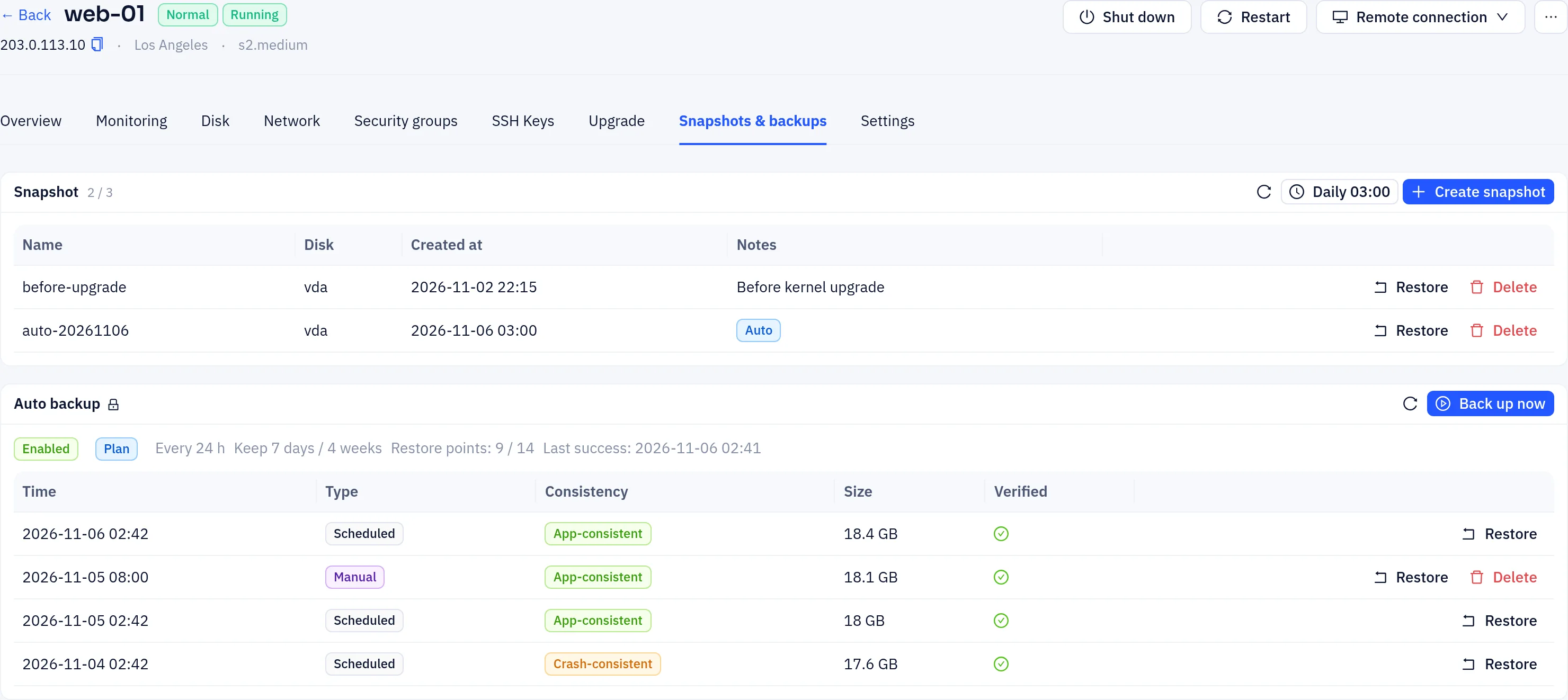
Snapshots
A snapshot saves a disk's state for quick rollback, for example before an upgrade. Snapshots are stored next to the instance, so they do not replace backups. The number you can keep is set by the plan and shown next to Snapshot.
- Create: click Create snapshot, choose the Disk, optionally add Notes, and confirm.
- Restore: click Restore on a snapshot. The disk's current data is overwritten and the instance restarts.
- Delete: click Delete to free quota.
- Scheduled: click it to take snapshots automatically (daily or weekly, at a set time, keeping the newest ones). Automatic snapshots are tagged Auto and count toward the quota; the oldest automatic one is replaced, manual ones are kept.
Auto backup
Auto backup copies the instance to encrypted off-site storage on a schedule.
- If your plan includes it, the card shows Enabled. Otherwise, if it is offered for your instance, buy the Auto backup add-on (or Extra restore points) and it turns on. If it is not offered, the card says Your plan doesn't include auto backup.
- When enabled, the card shows the interval, the retention, the Restore points used and Last success.
- Back up now: start an extra backup. The number of manual backups per day is limited.
- Each backup point is Manual or Scheduled, with its consistency, size and whether it passed a restore test. You can delete manual points.
Restore from a backup
- Click Restore on a backup point.
- Choose Whole VM or Single disk, and under Advanced the Power after restore.
- Confirm. The selected disks are overwritten.
Local backups (legacy) shows backups made by the older backup feature, if any.
Tip
For databases, stop writes or flush to disk before a snapshot or manual backup.
Was this page helpful?