SSL/TLS
Deploy free or custom certificates per hostname, set the encryption mode, Force HTTPS, HSTS and security headers, and issue Origin CA certificates.
SSL/TLS settings are on the SSL/TLS tab of a site's detail page (open the site from CDN → CDN domains). HTTPS on the CDN involves two connections:
- Visitor ↔ edge: uses the edge certificate deployed for each hostname. This is either a free automatic certificate or one you upload.
- Edge ↔ origin: the encryption mode and the hostname's origin protocol decide whether this connection is encrypted and whether the origin certificate is validated.
Deploying edge certificates
The Edge certificate management table lists every hostname on the site with its SSL status, issuer and expiry date. Click Manage certificates to open the certificate dialog. There are three ways to add a certificate.
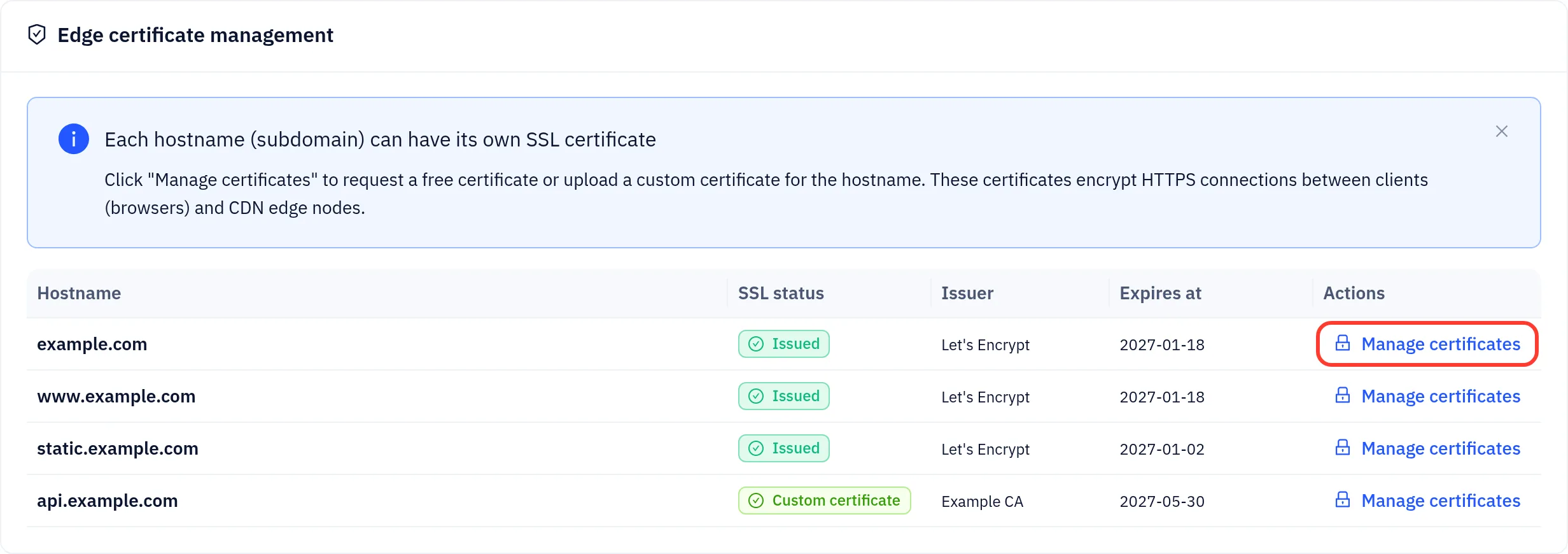
Option 1: Free automatic certificate (Let's Encrypt)
- Make sure the hostname's DNS already points to the CDN, through CNAME or nameserver setup. Validation uses HTTP-01, so the edge must be able to answer Let's Encrypt's validation request.
- On the Automatic certificate (Let's Encrypt) tab, click Request certificate.
- The dialog shows progress through three stages: Pending, Verifying domain, Issuing certificate. When it finishes, the status becomes Issued. If it fails, Certificate request failed appears with the reason.
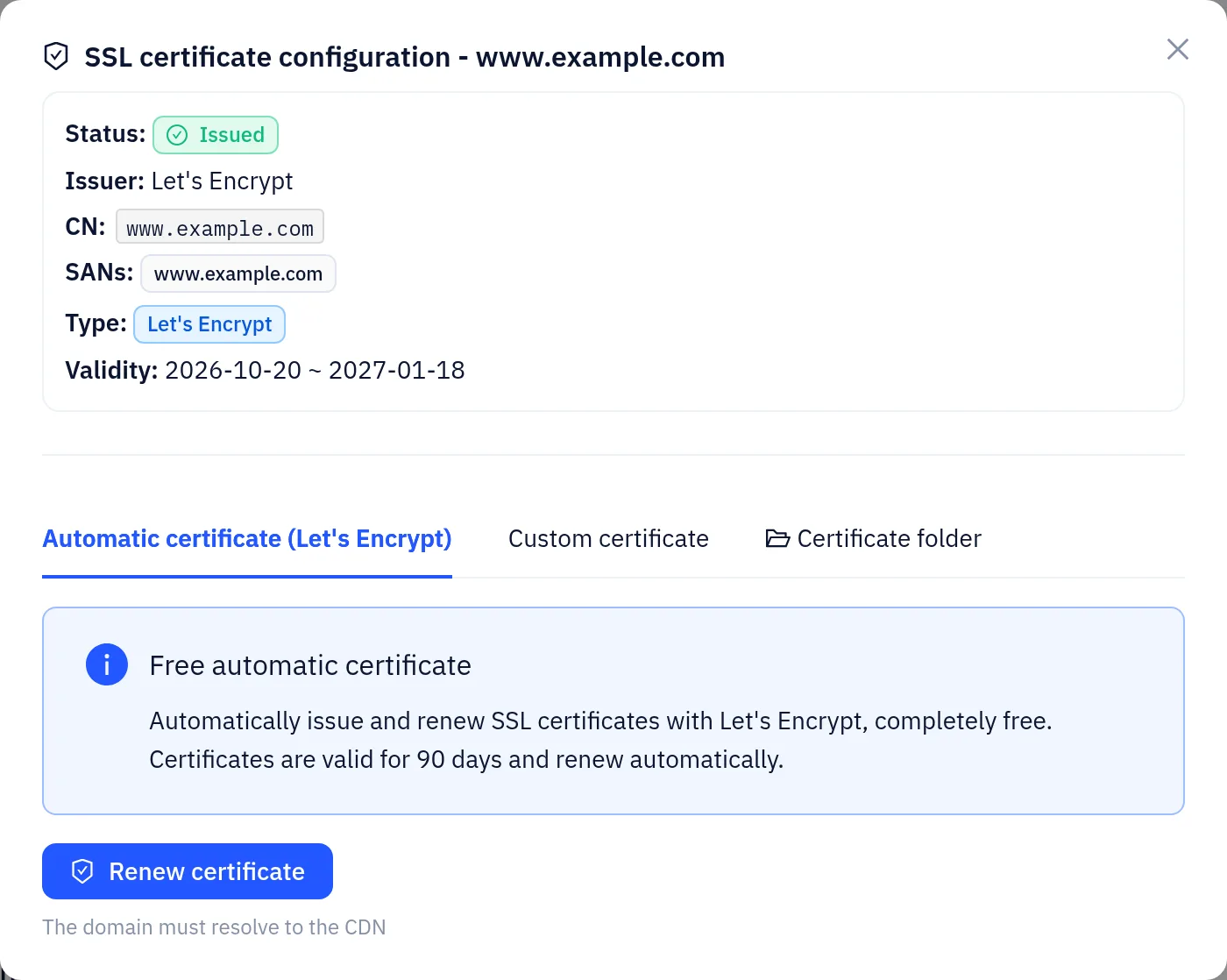
Automatic certificates are valid for 90 days. They are renewed and redeployed to the edge automatically before they expire, so you have nothing to do. Once a certificate exists, the button reads Renew certificate, which you can use to renew early.
The Certificate authority setting in the HTTPS settings card picks the CA for the next issue or renewal. If issuing fails, the other CA is tried automatically.
Wildcard hostnames such as *.example.com cannot be validated with HTTP-01. If the domain's DNS is hosted in Yeap DNS, the wildcard certificate is issued automatically through DNS validation. Otherwise, deploy a wildcard certificate through Custom certificate or Certificate folder (see below).
Force HTTPS does not interfere with HTTP-01 validation. The edge answers validation requests first.
Option 2: Upload a custom certificate
- Switch to the Custom certificate tab.
- Paste the certificate into Certificate (PEM format). Include the full chain: your server certificate first, then the intermediates.
- Paste the matching private key into Private key (PEM format).
- Click Upload certificate. The status changes to Custom certificate.
Custom certificates are not renewed automatically. Upload a new one before the current one expires.
Option 3: Deploy from the certificate library
If you bought or stored certificates in the Yeap Cloud SSL certificate service, you can pick one on the Certificate folder tab. It lists the certificates that match the hostname, including wildcard certificates that cover it. Select one to deploy it.
Encryption mode (edge to origin)
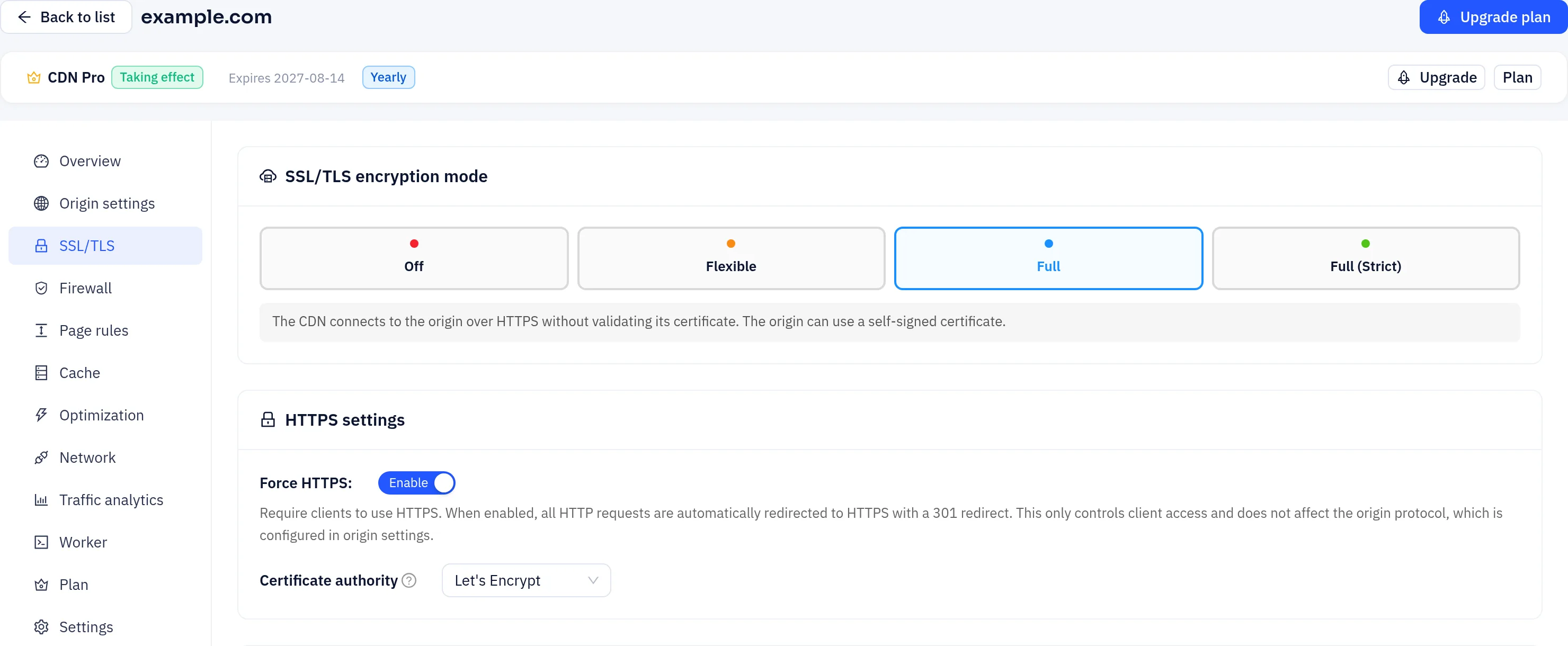
In the SSL/TLS encryption mode card, choose a mode and click Save:
| Mode | Edge to origin | Use when |
|---|---|---|
| Off | Plain HTTP | Your origin only serves HTTP |
| Flexible | Plain HTTP | Your origin has no certificate, but you want visitors on HTTPS |
| Full | HTTPS, origin certificate not validated | Your origin uses a self-signed certificate |
| Full (Strict) | HTTPS, origin certificate validated | Your origin has a valid certificate for your domain from a publicly trusted CA or an Origin CA certificate (see below) |
How the mode interacts with other settings:
- The table applies to hostnames whose origin protocol is Automatic. If you set the origin protocol to HTTP or HTTPS explicitly on the Origin settings page, the protocol wins. Full (Strict) validates the certificate only when the edge connects to the origin over HTTPS.
- Whether visitors can reach the edge over HTTPS depends only on whether the hostname has an edge certificate. The encryption mode does not change it.
- Switching to Off or Flexible asks for confirmation, because traffic between the edge and your origin will no longer be encrypted.
- In Full (Strict), requests to the origin fail if the origin certificate is invalid, expired or does not match the domain.
- HTTP/2 to the origin needs an HTTPS origin connection, so in Off and Flexible modes the edge falls back to HTTP/1.1.
In Flexible mode, if your origin also redirects HTTP to HTTPS, visitors get an infinite redirect loop. Switch to Full, or turn off the origin's own redirect. The Diagnostics tab can detect this.
Force HTTPS
Turn on Force HTTPS in the HTTPS settings card to redirect every HTTP request to the same URL over HTTPS with a 301. This controls how visitors connect. It does not change the origin protocol.
Before you turn it on, make sure every hostname on the site has a valid edge certificate. Otherwise visitors will see certificate errors.
HSTS and security headers
The settings in the HSTS & security response headers card are added by the edge to responses sent to visitors. After you change them, click Save in the card's top-right corner.
HSTS (HTTP Strict Transport Security)
| Field | Description |
|---|---|
| Toggle | Adds a Strict-Transport-Security header to HTTPS responses. It is never added to plain-HTTP responses |
| max-age (seconds) | How long browsers must use HTTPS. 31536000 (one year) is common |
| Include subdomains | Adds includeSubDomains |
| Preload | Adds preload, which you need to apply for browser HSTS preload lists |
Once a browser has seen HSTS, it refuses plain HTTP for that domain for the whole max-age. Check that HTTPS works everywhere first. Then start with a small max-age such as 300 seconds and raise it gradually.
Other security headers
- X-Frame-Options:
SAMEORIGINorDENY, to prevent clickjacking. - Referrer-Policy: pick a policy from the list.
- X-Content-Type-Options: nosniff: stops browsers from MIME sniffing.
- Content-Security-Policy (CSP): enter a complete policy. Leave it empty to send no CSP header.
These four headers only take effect when the Security response headers toggle is on.
CORS and custom headers
CORS (Cross-Origin Resource Sharing) lets you set:
- Allowed origins, one per line, with
*meaning any origin - Allowed methods
- Allowed request headers
- Exposed response headers
- Whether credentials are allowed
- The preflight max-age
Credentials cannot be allowed together with the origin
*.- Allowed origins, one per line, with
Custom response headers: set overrides a header of the same name, add appends a value (repeatable), and remove deletes a header such as
X-Powered-By.
On Free and Starter sites, every response carries Server: YeapCDN/2.0, and any customization or removal of the Server header is ignored. Pro and Enterprise sites can set or remove the Server header.
Origin CA certificates
Origin CA certificates are issued by the platform and installed on your origin server to encrypt the connection from the edge to your origin. Only Yeap Cloud CDN uses them, and browsers do not trust them, so never use one as a visitor-facing certificate.
To issue one:
In the Origin CA certificate card, click Issue certificate.
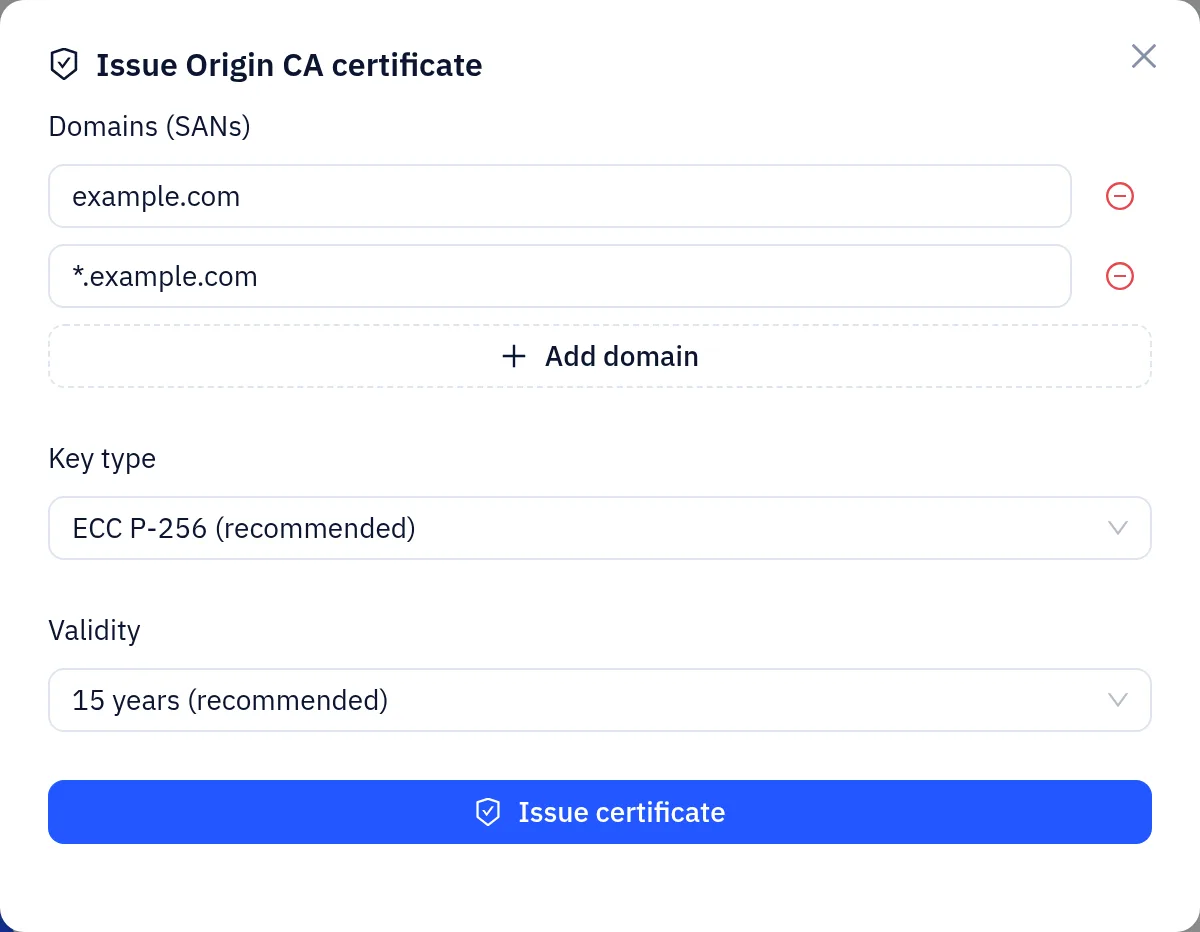
Fill in the dialog:
- Domains (SANs): defaults to
example.comand*.example.com. - Key type: ECC P-256 (recommended), RSA 2048 or RSA 4096.
- Validity: 7 days to 15 years. The default is 15 years.
- Domains (SANs): defaults to
Copy and store the certificate and private key right away. The private key is shown only once. You cannot view it again after closing the dialog.
Install the certificate and key in your origin's web server.
Set the site's encryption mode to Full (Strict).
If you need the CA chain on your origin, click Download CA root certificate. From the certificate list you can view, revoke and delete certificates.
Full (Strict) trusts both publicly trusted CAs and the platform's Origin CA, so an origin with an Origin CA certificate passes validation.
Related
- Hostnames and origin protocol: Add a site
- Override HTTPS redirects or origin encryption for specific paths: Page rules