Connectors and routes
Install a Connector in your network, approve the routes it offers, add a standby Connector and map overlapping networks with NAT.
A Connector makes a network you own reachable to your team, for example an office LAN or a data center subnet. You install it on any Linux machine in that network. It connects out to Yeap's gateways, so you do not need to open inbound ports or have a public IP address.
Everything on this page is in the team dashboard under Connectors, which has three tabs: Routes, Connectors and Gateways.
Requirements
- Linux with systemd, and root access.
- amd64 with glibc 2.34 or newer (Debian 12, Ubuntu 22.04, RHEL 9 or newer), or any arm64 system.
- Outbound internet access. The installer adds missing tools (
ip,nft,tar,curl) with the system's package manager.
Install a Connector
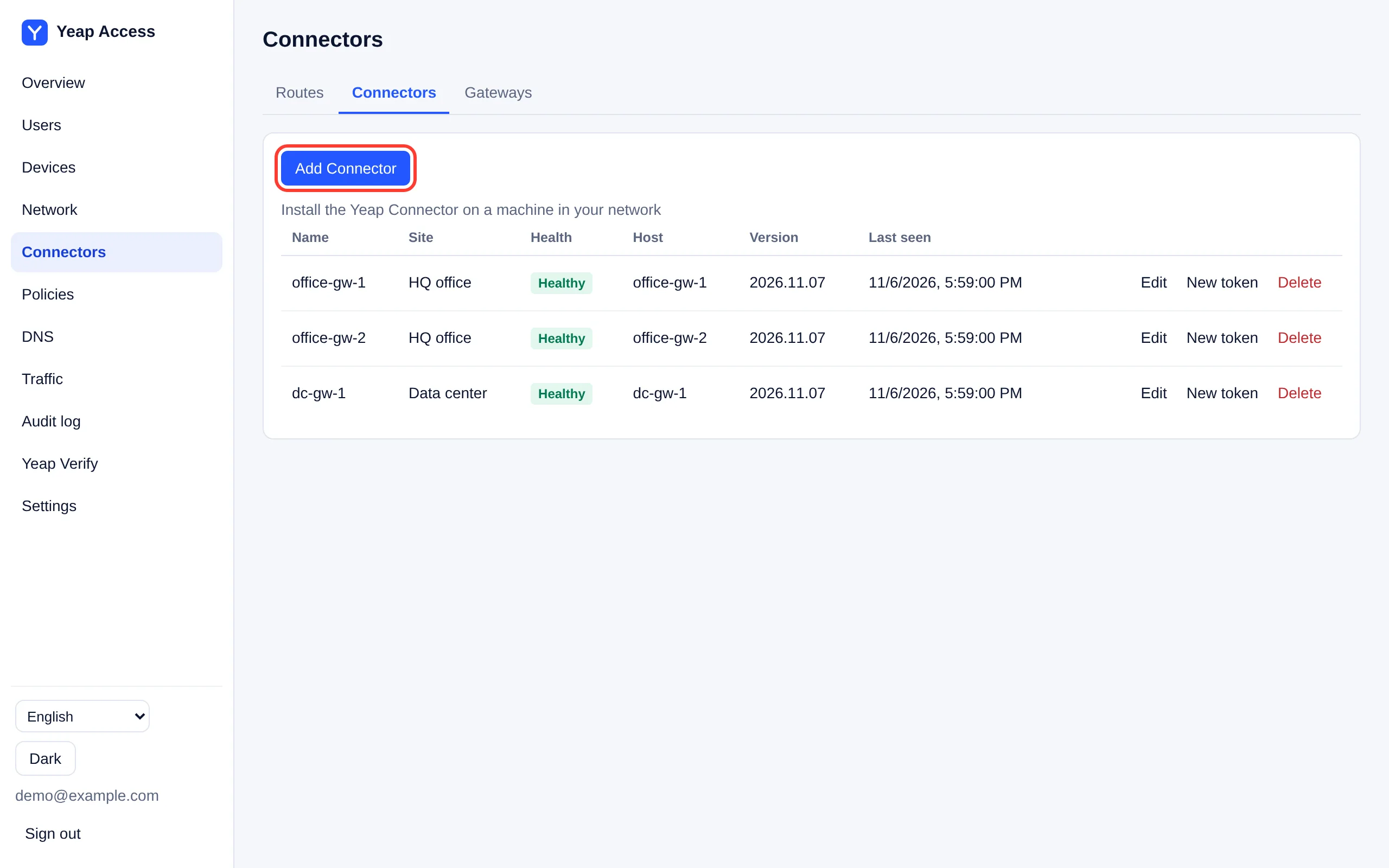
- Open Connectors, click the Connectors tab, then click Add Connector.
- Enter a Name, for example
office-gw-1, and optionally a Site, for exampleHQ office. Connectors in the same site back each other up for the same network. - The dialog shows a one-line install command. It is shown only once and the token in it expires, so copy it now.
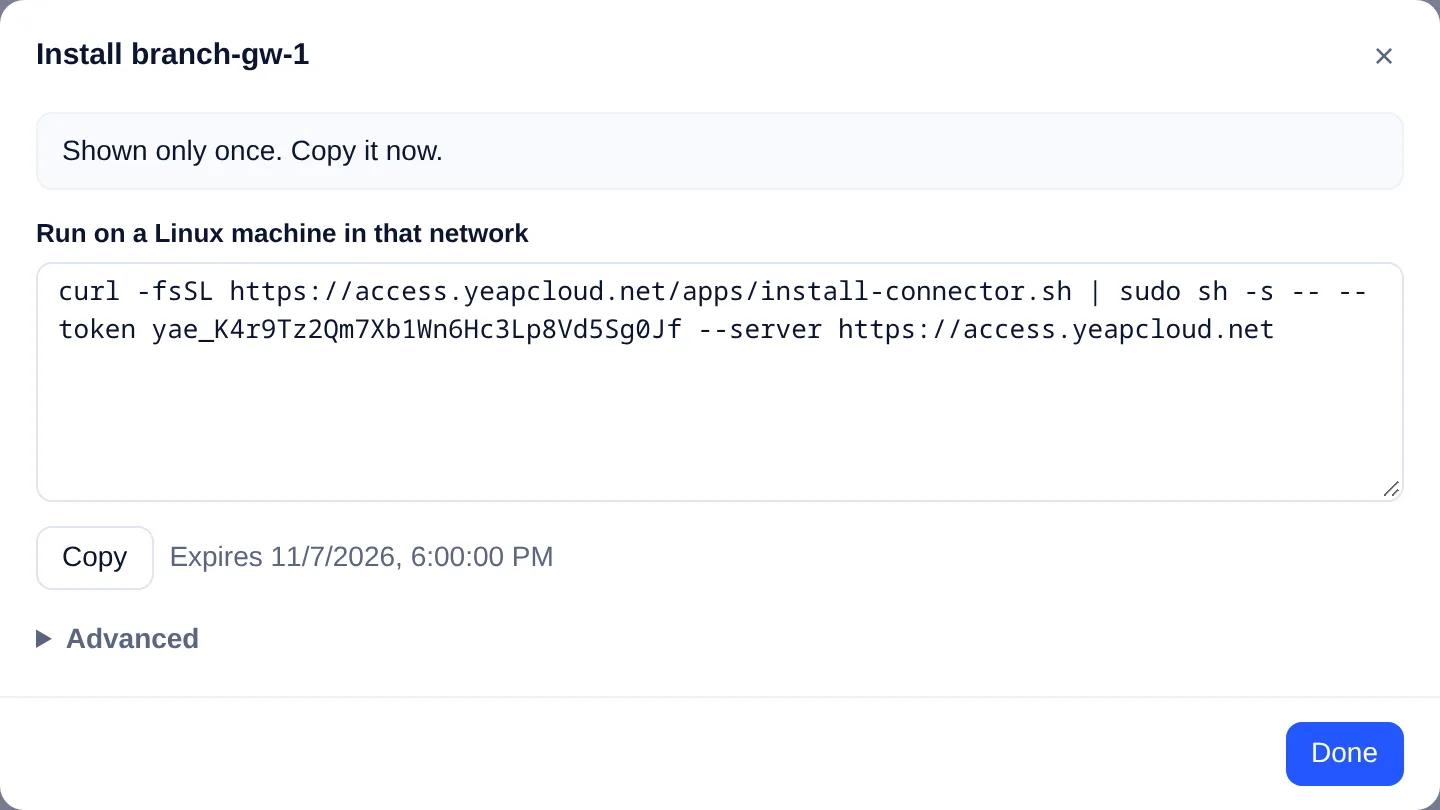
Run the command as root on the Linux machine in that network:
bashcurl -fsSL https://access.yeapcloud.net/apps/install-connector.sh | sudo sh -s -- --token yae_… --server https://access.yeapcloud.net
The Connector shows as Healthy within a few seconds. Its key is created on your machine and never leaves it.
By default the Connector offers the private subnet of the machine's main network interface. To offer other networks, add --advertise with a comma-separated list, for example --advertise 10.0.0.0/16,10.1.0.0/24.
If the machine runs Docker, ufw or firewalld, forwarding may be blocked by default. The installer then prints the two iptables commands that allow traffic through the Connector. It does not change your firewall itself.
| Task | Command (add to the install line) |
|---|---|
| Change the offered networks | Run the install command again with a new --advertise |
| Upgrade | --upgrade |
| Uninstall | --uninstall; add --purge to also remove its configuration and key |
| Replace the key | Click New token on the Connector's row and run the new command |
Running the command again is safe. It only restarts the service when something changed.
Approve routes
A network a Connector offers is a route. Routes do nothing until an admin approves them.
- Open Connectors. New routes are listed under Waiting for approval.
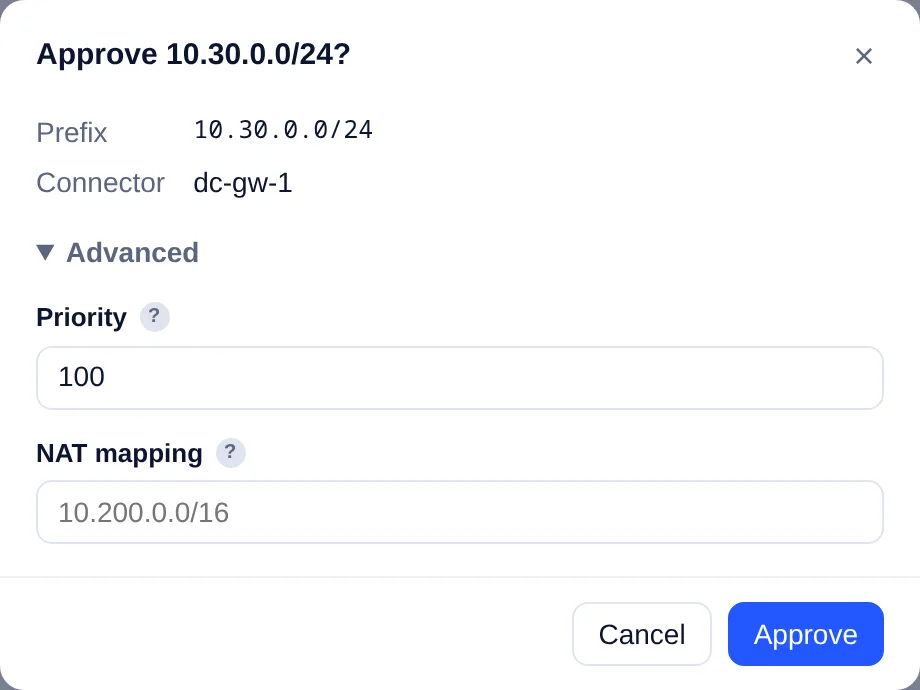
- Click Approve. Under Advanced you can set the Priority and a NAT mapping (see below). Click Approve again to confirm.
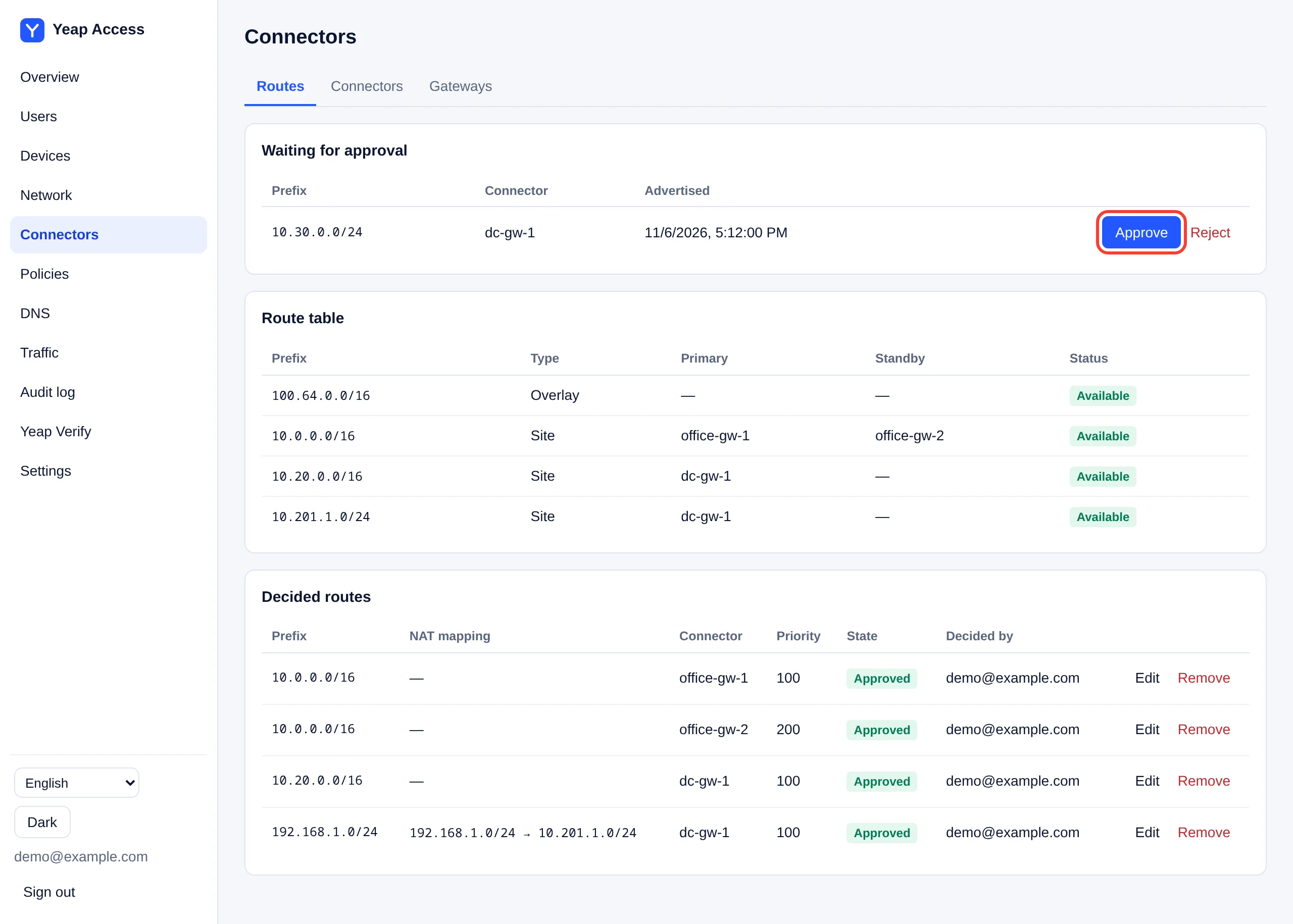
The Route table shows each network, its primary and standby Connectors and whether it is available. Decided routes lists approved and rejected routes. Click Edit to change an approved route, or Remove to take it away from clients at once.
Approving a route only makes the network reachable. Users still need an access rule that allows it.
A route of 0.0.0.0/0 or ::/0 makes the Connector the exit for all traffic the rules allow. The dashboard marks it Full tunnel and asks you to type the prefix to confirm.
Standby Connectors
Install a second Connector in the same network, ideally on another machine, and give it the same Site. When it offers the same network, approve that route with a higher Priority number. For the same network, the lowest priority is the primary and the others are standby. If the primary stops or loses its connection, traffic moves to the standby within seconds, and moves back when the primary returns.
NAT mapping
Two of your sites may use the same private range, or a range that clashes with users' home networks (for example 192.168.1.0/24). Give such a route a NAT mapping: clients then reach the network under another prefix of the same length. For example, with 192.168.1.0/24 mapped to 10.201.1.0/24, users reach 192.168.1.20 as 10.201.1.20. Write access rules for the mapped prefix.
Gateways
The Gateways tab lists the gateways your team uses. Gateways marked Yeap are run by Yeap in several regions and cannot be edited. Clients test the nearest gateways and use the fastest. Connectors and clients on different gateways still reach each other.