SSL tools
Free CSR generator, certificate chain completion, certificate decoder and key matcher.
Yeap Cloud offers four free online SSL tools to help you request, troubleshoot and deploy certificates. They are open to everyone; you don't need to have bought a certificate from Yeap Cloud.
Where to find them
- In the console: sign in and open SSL certificates → SSL tools.
- Public page: no sign-in needed, go to yeap.cloud/tools/ssl.
Both offer the same four tools, one per tab: CSR generator, Certificate chain completion, Certificate parsing and Key matches.
To prevent abuse, a human-verification challenge appears if you use the tools many times in a short period. Complete it and carry on.
CSR generator
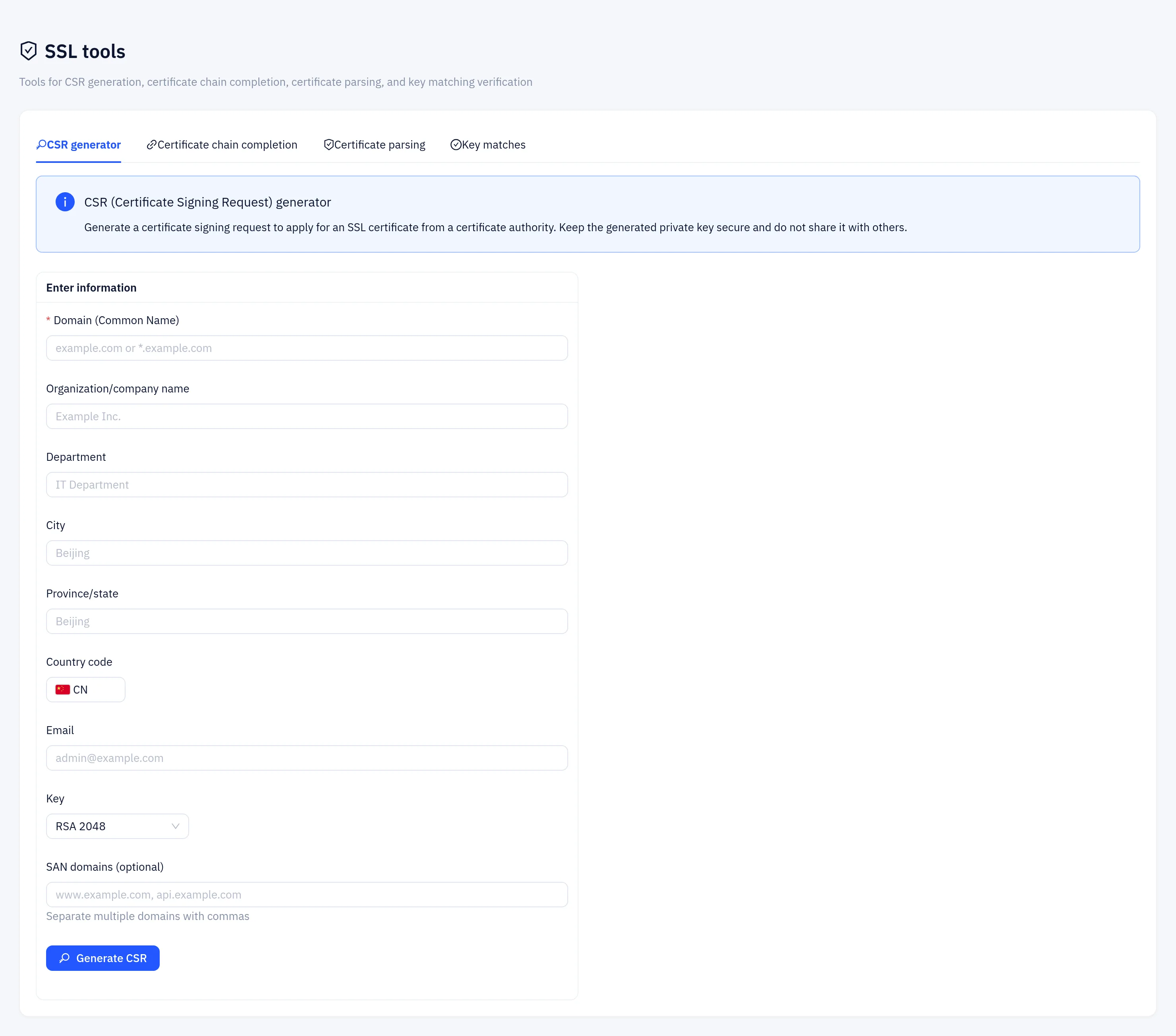
Generates a Certificate Signing Request (CSR) and the matching private key, to submit to a CA.
| Field | Description |
|---|---|
| Domain (Common Name) | Required, for example example.com or *.example.com |
| Organization/company name, Department | For OV/EV certificates use your legal company name; may be left blank for DV |
| City, Province/state | Where the organization is located |
| Country code | Two-letter ISO country code such as US or DE |
| Optional | |
| Key | RSA 2048, RSA 4096 or ECDSA P-256 |
| SAN domains (optional) | Extra names separated by commas, e.g. www.example.com, api.example.com. The Common Name is added to the SAN list automatically |
Click Generate CSR. The page shows the CSR and the private key, each with Copy and Download buttons.
The private key is shown only in this result and is not stored by the platform. Download it and keep it safe right away. If you lose it, the certificate can't be used and has to be reissued.
If your security policy requires that private keys never leave your machine, generate them locally with OpenSSL:
openssl req -new -newkey rsa:2048 -nodes -sha256 \
  -keyout example.com.key -out example.com.csr \
  -subj "/C=US/ST=California/L=San Francisco/O=Example Inc/CN=example.com" \
-addext "subjectAltName=DNS:example.com,DNS:www.example.com"Certificate chain completion
When some browsers or clients report a certificate as untrusted, the usual cause is a server that doesn't send its intermediate certificates. Paste your certificate (PEM) and click Complete certificate chain. The tool follows the Authority Information Access (AIA) URL in each certificate to download the issuer, up to 10 levels or until it reaches a root.
The result contains:
- Full certificate chain: copy or download it and use it as your full-chain file (for example for Nginx
ssl_certificate). - One entry per certificate in the chain, with its subject, issuer and validity.
If the certificate has no AIA information, or an issuer URL can't be reached, the tool returns only what it could fetch. In that case get the intermediates from your CA.
Certificate parsing
Paste a certificate (PEM) and click Parse certificate to see:
- Common Name and SAN names
- Issuer and organization
- Valid from / valid to, with the days remaining or an "Expired" flag
- Serial number and signature algorithm
- Key type (RSA, ECDSA and so on) and key size
Use it before deployment to confirm the certificate covers the right names and isn't about to expire.
Key matches
If installing a certificate fails with an error such as "private key does not match certificate", use this tool. Paste the certificate and the private key (PEM, unencrypted) and click Verify match:
- Key matches: the key and certificate belong together and can be used as a pair.
- Key does not match: make sure you are using the private key that was created with the CSR for this certificate.
The check sends the private key to the server. The platform does not store what you submit, but for important production keys you can compare the public keys locally instead:
openssl x509 -noout -pubkey -in example.com.crt | openssl sha256
openssl pkey -pubout -in example.com.key | openssl sha256
Identical output means they match.
Using the API
The tool endpoints need no login token and take a JSON body:
curl -X POST https://api.yeap.cloud/ssl-tools/decode-cert \
  -H "Content-Type: application/json" \
-d '{"certificate": "-----BEGIN CERTIFICATE-----\n...\n-----END CERTIFICATE-----"}'| Endpoint | Request fields |
|---|---|
POST /ssl-tools/generate-csr | commonName (required), organization, organizationalUnit, locality, state, country, email, keySize (2048/4096) or keyType ec for ECDSA P-256, san (comma-separated) |
POST /ssl-tools/complete-chain | certificate |
POST /ssl-tools/decode-cert | certificate |
POST /ssl-tools/match-key | certificate, private_key |
A successful call returns {"success": true, "data": {...}}. The endpoints are rate limited and ask for human verification when the limit is exceeded, so they are not suitable for bulk or automated use.