Pages and the editor
Manage pages, edit blocks in the drag-and-drop editor, set the theme, use AI edits, and publish or roll back versions.
A site is a set of pages. Each page is a stack of blocks (sections such as a hero, a product grid or a contact form) that you arrange in the editor. A header and footer shared by all pages sit around them.
Pages
Open a site and click Pages. Pages are shown as a tree by path. For example, /about/team sits under /about.
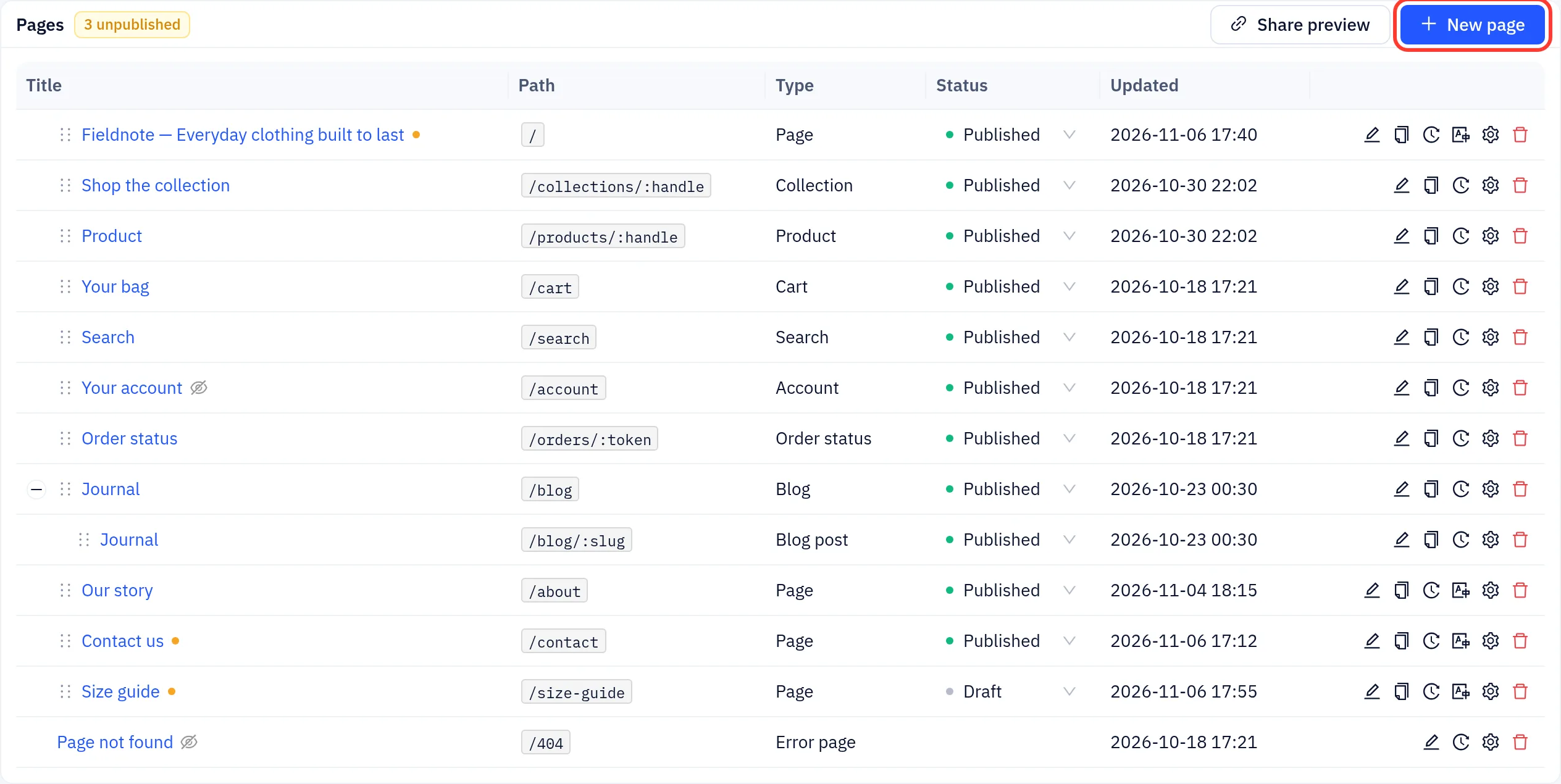
- New page: enter a title and a path, pick a type and an optional layout to start from, then Create. The editor opens on the new page.
- Edit: click a title (or double-click a row) to open it in the editor.
- Status: change it right in the list.
| Status | Meaning |
|---|---|
| Published | Live after the next publish |
| Hidden | Reachable by its link, but not in menus, the sitemap or search |
| Draft | Not on the live site |
- Order: drag rows by the handle to reorder pages at the same level.
- A yellow dot marks pages changed since the last publish, and the header shows how many are unpublished.
- Row icons: Duplicate, Revisions (earlier saves of the page, which you can restore), Translate to… (an AI copy in another site language; add languages in Settings), Page settings and delete.
- Share preview creates a private link to the unpublished site that you can send to others. It expires automatically, or you can Revoke it.
Page settings also control who can view the page: everyone, visitors with a page password, or signed-in customers (optionally only those with certain customer tags). Store pages such as the cart, account and order status pages are built in and cannot be protected.
Besides normal pages, a store has template pages that show one product, collection, blog post and so on (paths such as /products/:handle). Editing one of these changes the layout for every product, collection or post.
The editor
Click Edit site on the site dashboard, or open a page from Pages. The editor opens full screen.
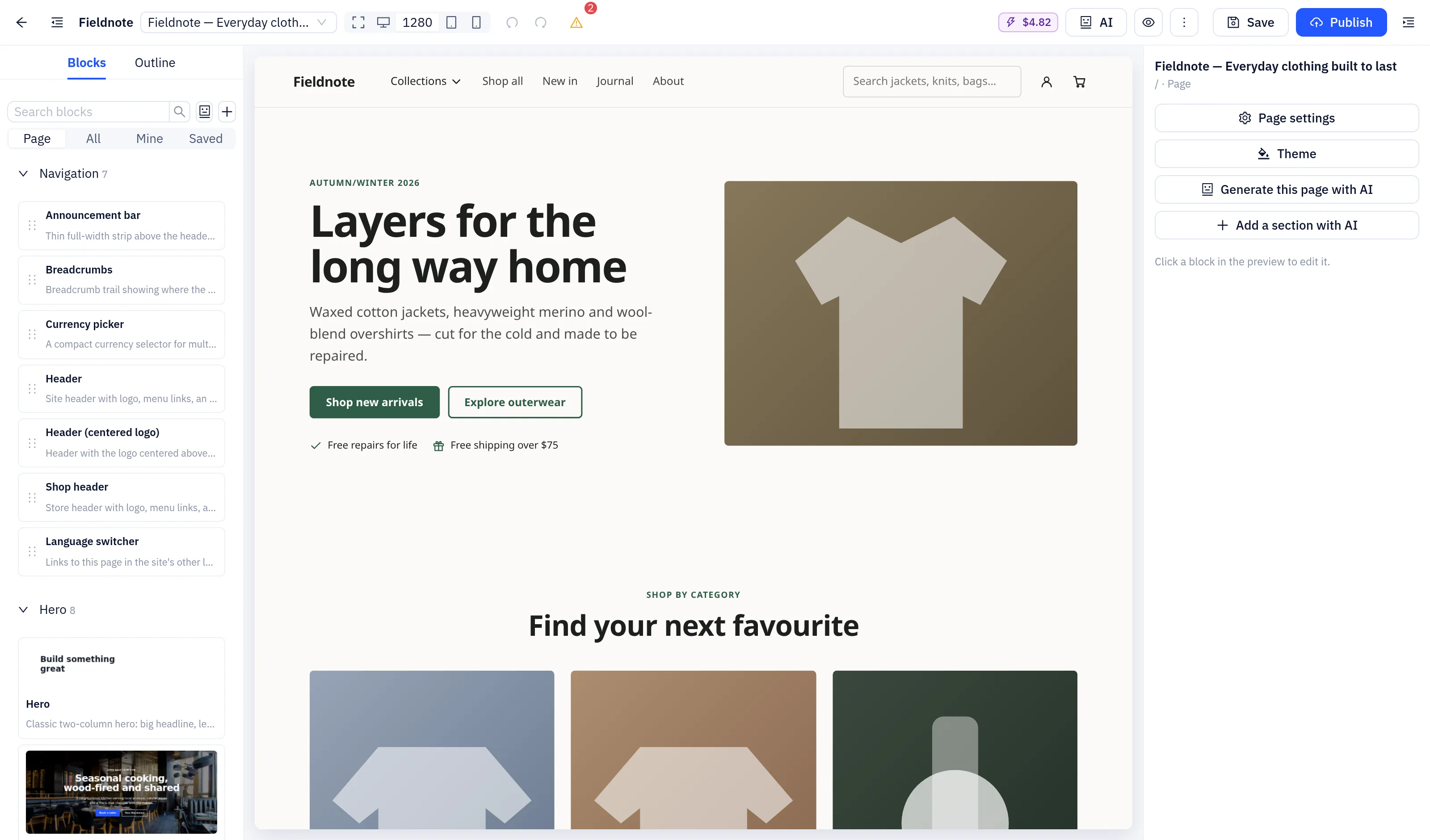
- Left panel: Blocks is the library of sections, searchable and grouped by category. Drag a block into the preview or click it to add it. Outline lists the blocks on the page. Drag to reorder them, or hide one without deleting it.
- Centre: a live preview of the page. Click any block to select it. The device buttons switch between desktop, tablet and mobile widths.
- Right panel: the selected block's settings, such as texts, images, links, colours and spacing. You can also schedule when a block shows.
- Top bar: the page switcher, Undo/Redo, Theme, Save and Publish.
Changes are saved as drafts automatically every 10 seconds, or when you click Save. Visitors only see them after you Publish.
Header, footer and global blocks
The header, footer and blocks above or below the page content are shared by all pages. Click the header or footer in the preview, or use Edit global header / Edit global footer. Edits there apply to every page. To leave them out on one page, turn off Use site header and footer in its page settings.
Theme
Theme sets the site-wide colours, fonts and spacing. Blocks follow the theme unless you override a colour on the block itself. You can upload your own fonts (woff2/woff).
Edit with AI
- Add a section with AI: describe a section and AI adds it to the page.
- Rewrite text with AI: rewrite the text of the selected block.
- Generate this page with AI: draft a whole page from a description.
AI results are drafts like any other edit. AI use is charged to your LLM API balance.
Images and media
Image fields open the media library, where you can upload images (up to 10 MB: jpg, png, webp, gif), videos (mp4, webm, up to 100 MB) and PDFs (up to 20 MB). Everything you upload is also listed under Media on the site dashboard. Uploads count towards your plan's storage.
Versions
Every publish is kept as a version under Versions (the 30 most recent). For each version you can:
- Preview it.
- Restore to draft: bring its pages and global blocks back as drafts. The live site does not change until you publish.
- Make live: switch the live site back to that version at once. Your drafts stay as they are, and the next publish replaces it again.
Site settings
Settings holds site-wide options: name and logo, business details, theme, menus, SEO (page titles, descriptions, social images, robots.txt) with an SEO audit, site languages, Integrations (site verification and tracking or chat codes, which wait for cookie consent when the cookie banner is on), Password protection for the whole site and, for stores, the store options.